 CASE Framework
Managing Templates
Create, edit, and delete app role templates
Overview
App role templates can be created, edited, and deleted in the "Available App Roles" tab of the "User Management" module. This functionality is available only for admin users.
Once you have created templates, you can assign them to management users to grant specific permissions. For more information, see Assigning Roles.
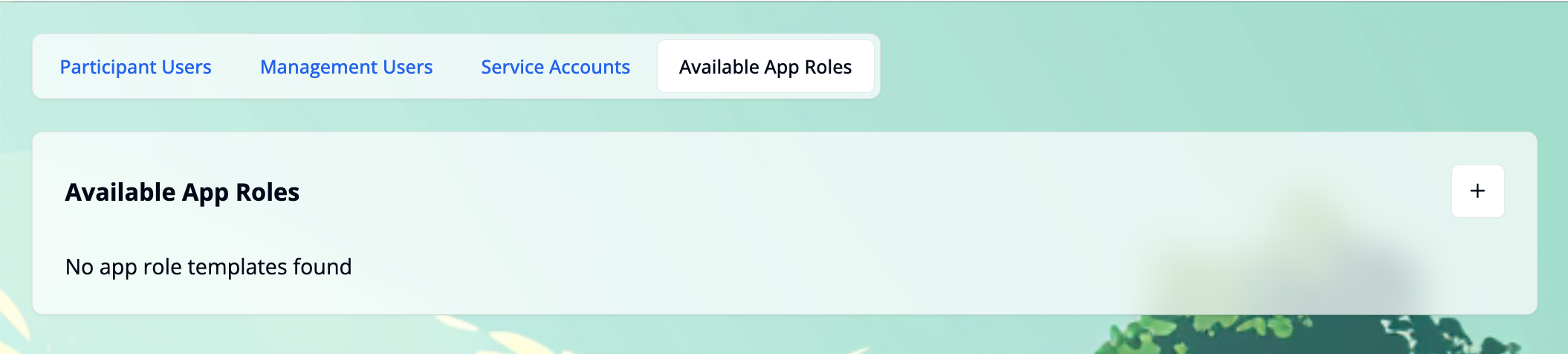
Add a new App Role Template
Click the + button in the top right corner of the "Available App Roles" card. This will open a modal window.
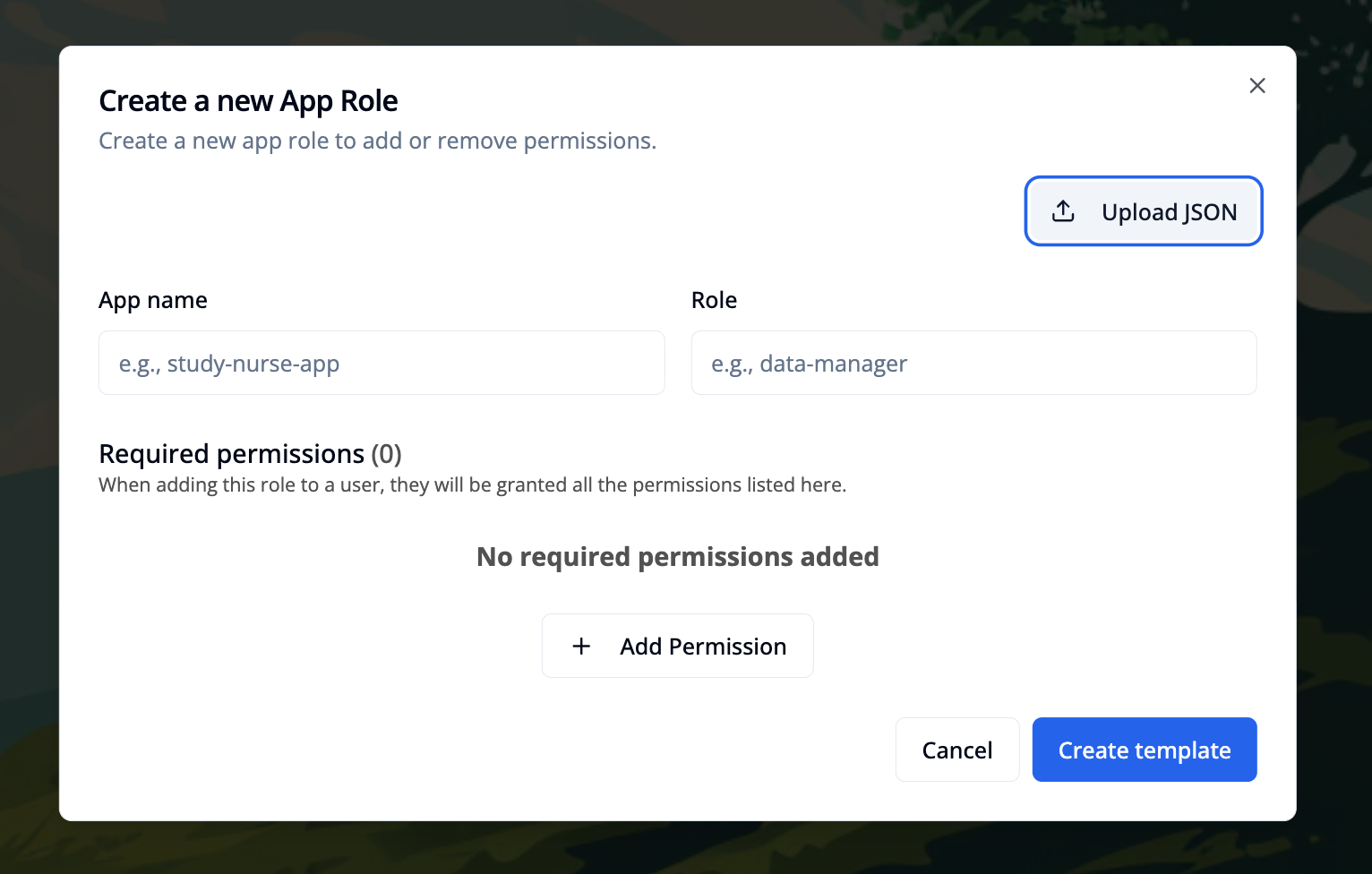
Fill in the "App name" and "Role" fields. Add the required permissions by clicking the + Add Permission button in the "Required Permissions" section.
You can remove a permission by clicking the x button on the right side of each list item.
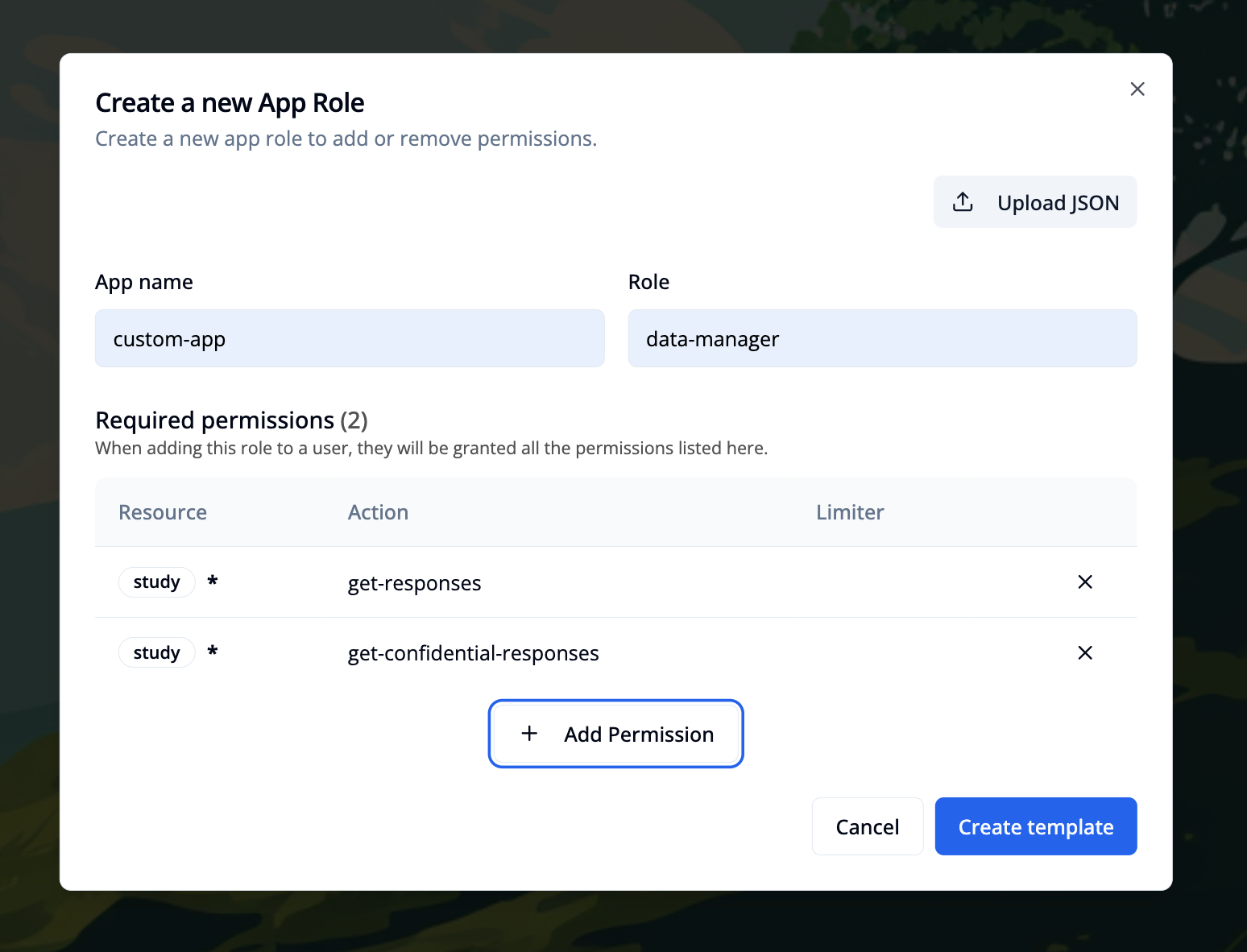
Click the Create template button to save the app role template.
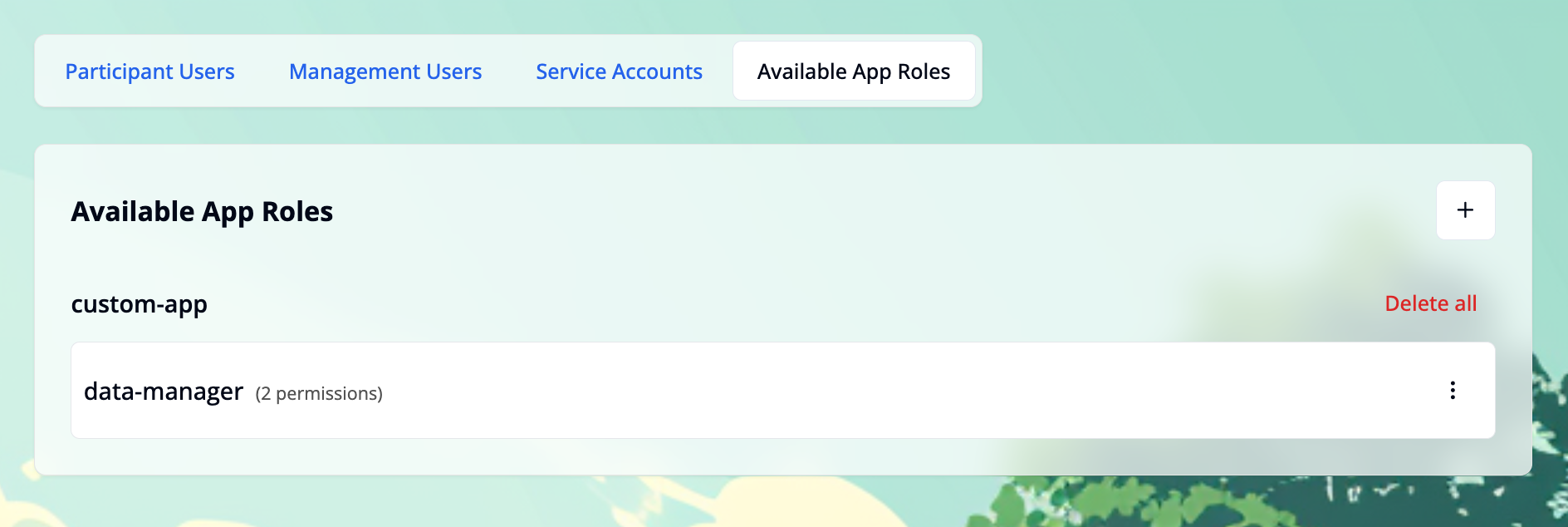
Copy and Paste an App Role Template
This feature allows you to copy an existing app role template and paste it in another location. This is particularly useful for migrating templates between different environments (e.g., from test to production).
In the source environment: Click the Copy option in the three-dot menu on the right side of the app role template card.
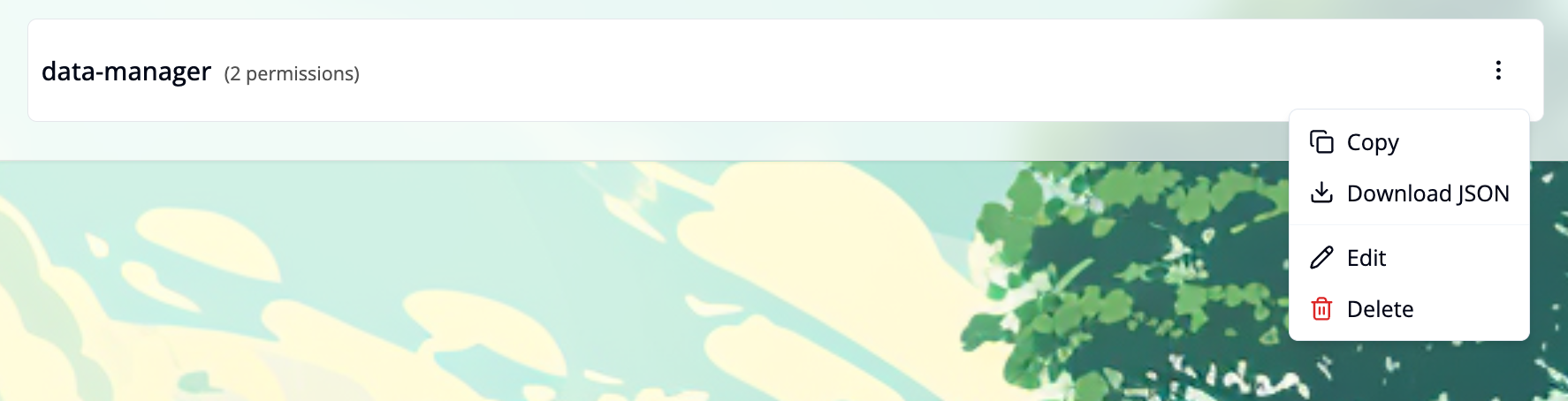
In the target environment: Click the + button in the top right corner of the "Available App Roles" card. This will open a modal window. Click the Paste from clipboard button to paste the copied template into the form.
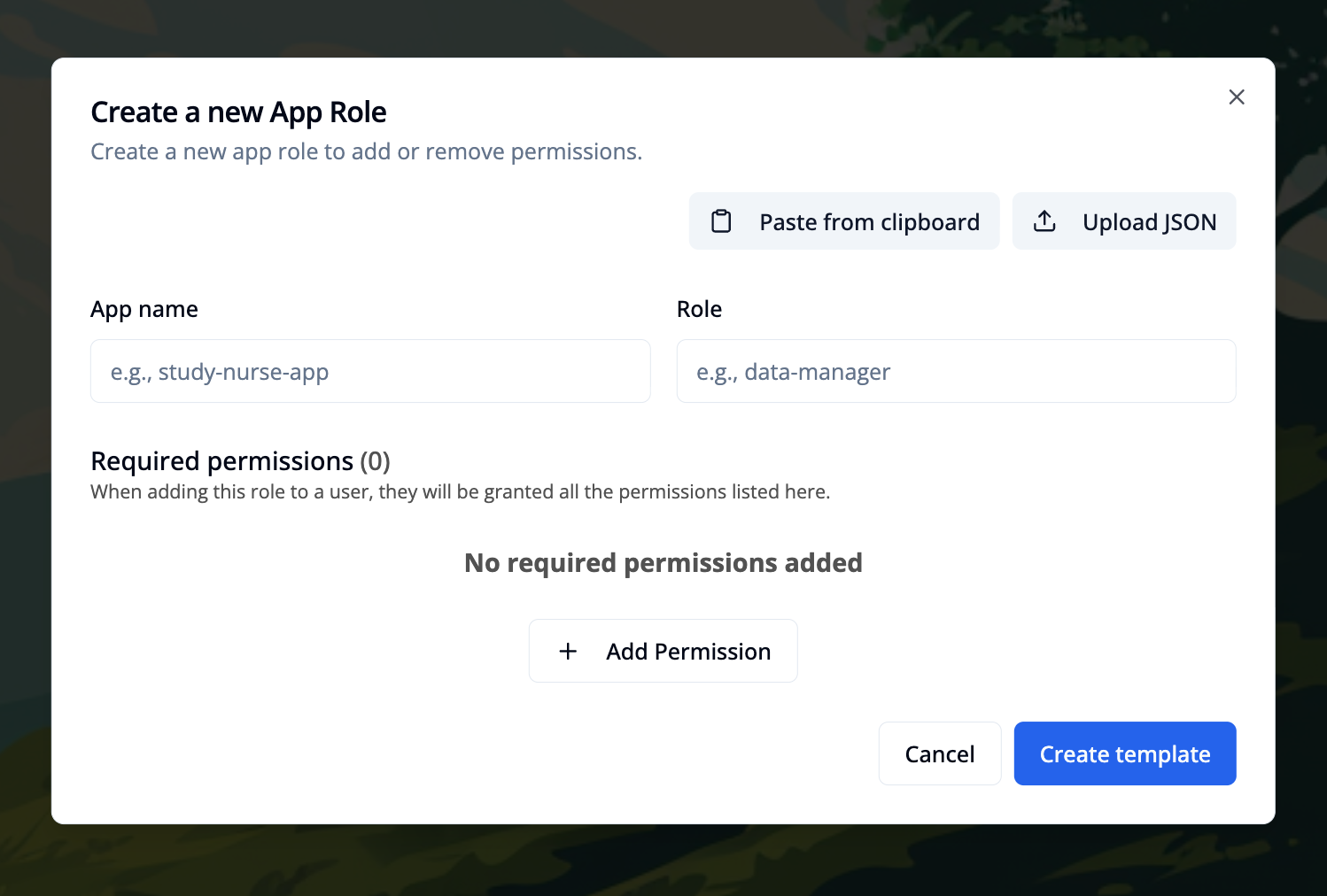
You can also use Download JSON to export an app role template as a file, then Upload JSON to import it and automatically populate the form.
Edit an App Role Template
Click Edit (pencil) in the three-dot menu on the right side of the app role template card to open a modal.
Make your changes. When you’re done, click Save changes to update the template.
Delete an App Role Template
You can delete app role templates in two ways:
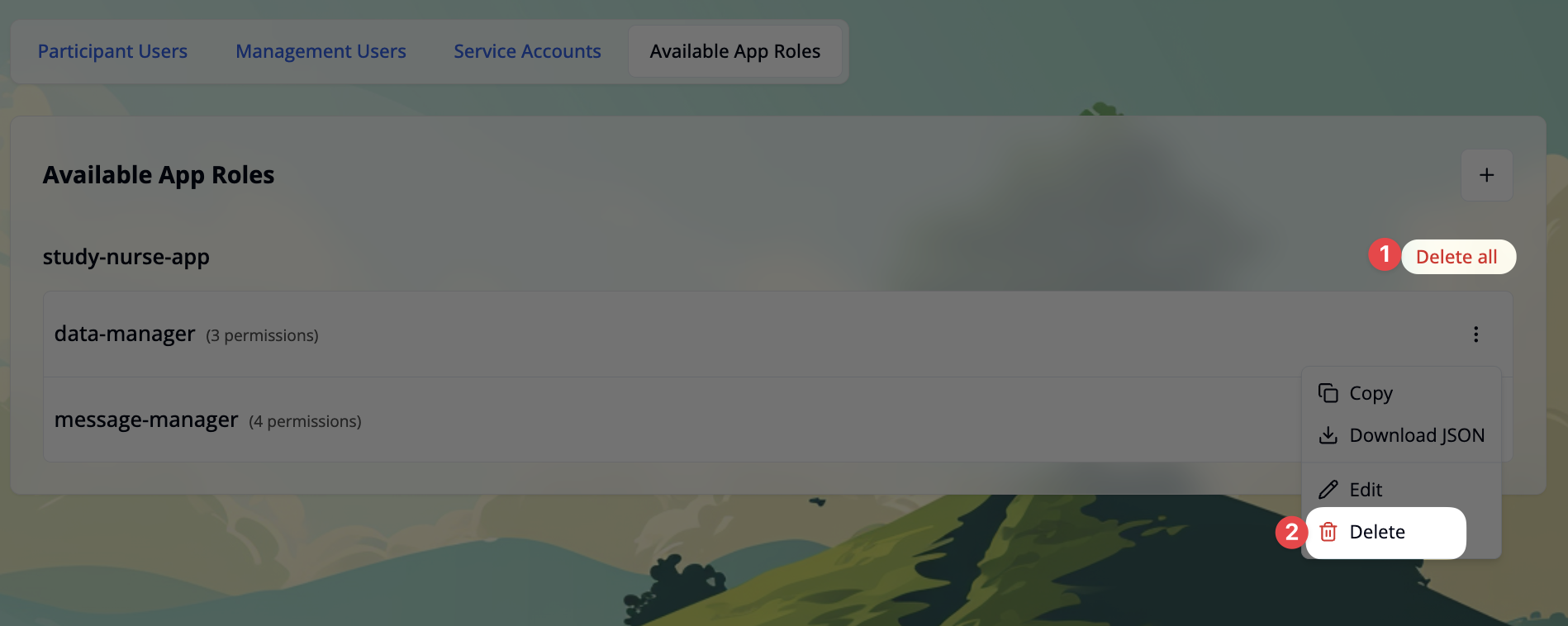
- Delete all: Click the
Delete allbutton next to the app name to remove all templates for that app. This also removes these app roles from all management users. - Delete single template: Click the three-dot menu on a template card and select
Deleteto remove only that specific template. This also removes the template from any users it was assigned to, but other templates for the same app remain unaffected.
Deleting templates does not revoke permissions previously granted via those roles. Review and clean up permissions as needed!