 CASE Framework
How to set up ENTRY actions for new participants
Define actions that run when a participant enters the study.
This example shows how to configure actions that are executed automatically when a participant enters the study. We’ll use the case where a welcome message is sent, the intake survey is assigned, and a reminder message for submitting the intake survey is scheduled.
Prerequisite
Before you can configure ENTRY actions, make sure the Survey keys and Message keys are already defined in the Survey context.
Needed for this example:
- Survey keys:
intake - Message keys:
Welcome,Reminder
Follow these steps
In your study rules dashboard, click the "Entry event handler" section.
In the ENTRY handler editor, click "+ add value". From the list of available actions, select "Send a message now (immediately)".
Choose the message type Welcome you defined in your survey context. Optionally, you can use the "Use language" setting to specify a language that should be used instead of the template's default language (e.g. write nl as text input).
Add another action by clicking "+ add value" and select "Add new survey".
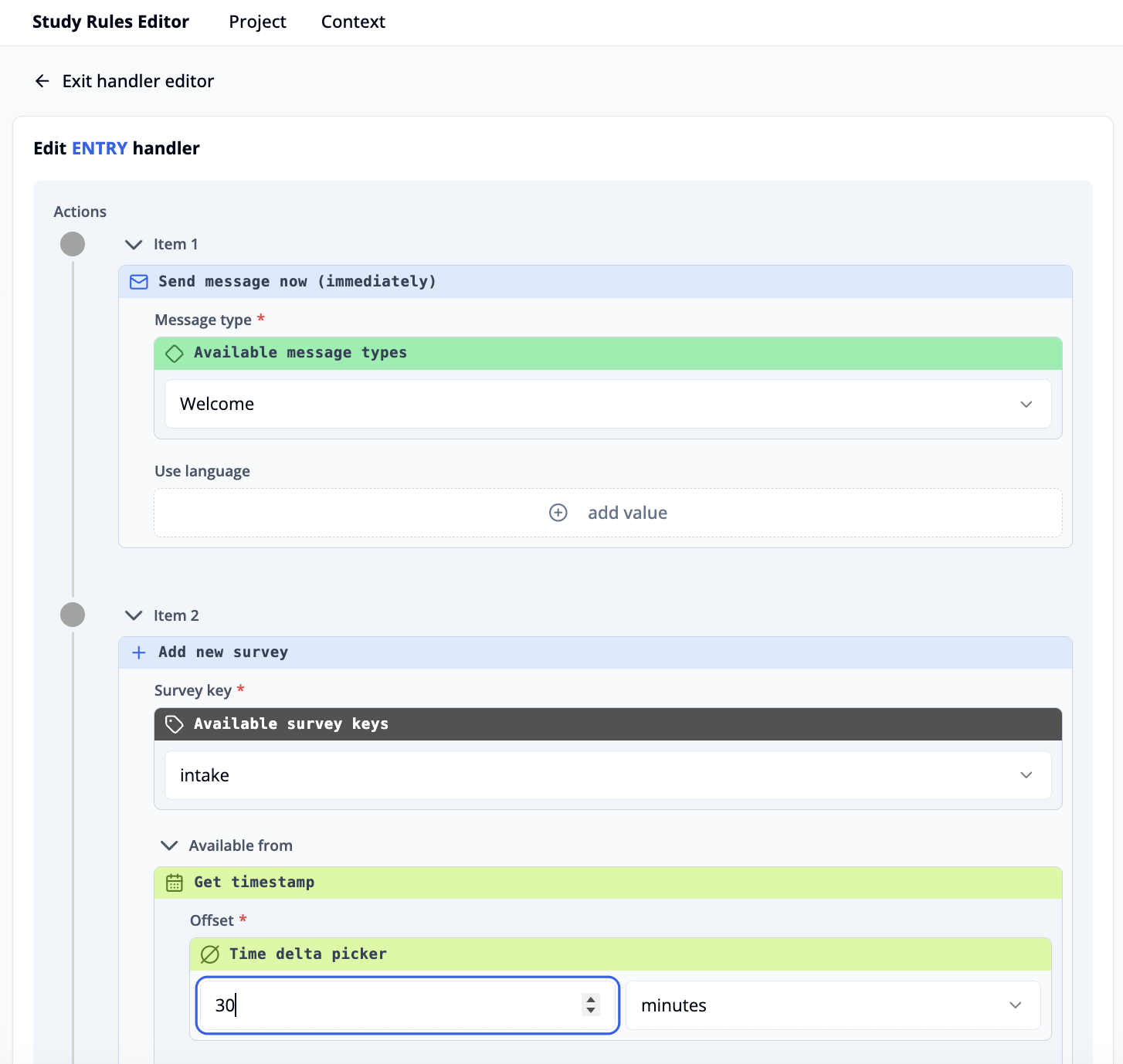
Select the survey key intake.
Use the "Available from" field if you want the survey to become available at a specific future time: Add the expression "Get timestamp" to insert the current time, then adjust the offset (e.g., add 30 minutes or any desired delay).
Leave "Available until" empty if the survey should remain available indefinitely.
Add a third action: click "+ add value" and select "Schedule a message".
Choose the message Reminder.
Under "Scheduled for", set an offset such as 3 days. This ensures the reminder message is sent 3 days after the participant's entry.
Your ENTRY event will now automatically:
- Send a welcome message immediately.
- Assign the intake survey.
- Schedule a reminder message after the defined delay.