 CASE Framework
Study Rules Editor
Overview of the study rules editor interface
Introduction
Study rules define automated actions that are applied to participants during different stages of a study. They are executed when specific events are triggered (e.g., when a participant enters or leaves the study, or when a survey is submitted). Study rules enable you to:
- Scheduling: Configure when surveys become available or expire based on time or participant actions
- Event handlers: Define actions based on study events (entry, survey submission, timers, etc.)
- Conditions: Use variables and participant state to control study behavior and flow
Study Rules Editor Dashboard
The Study Rules Editor is a graphical interface that allows you to create and manage these rules. It provides tools to define event handlers, configure contexts, and automate study workflows and participant management.
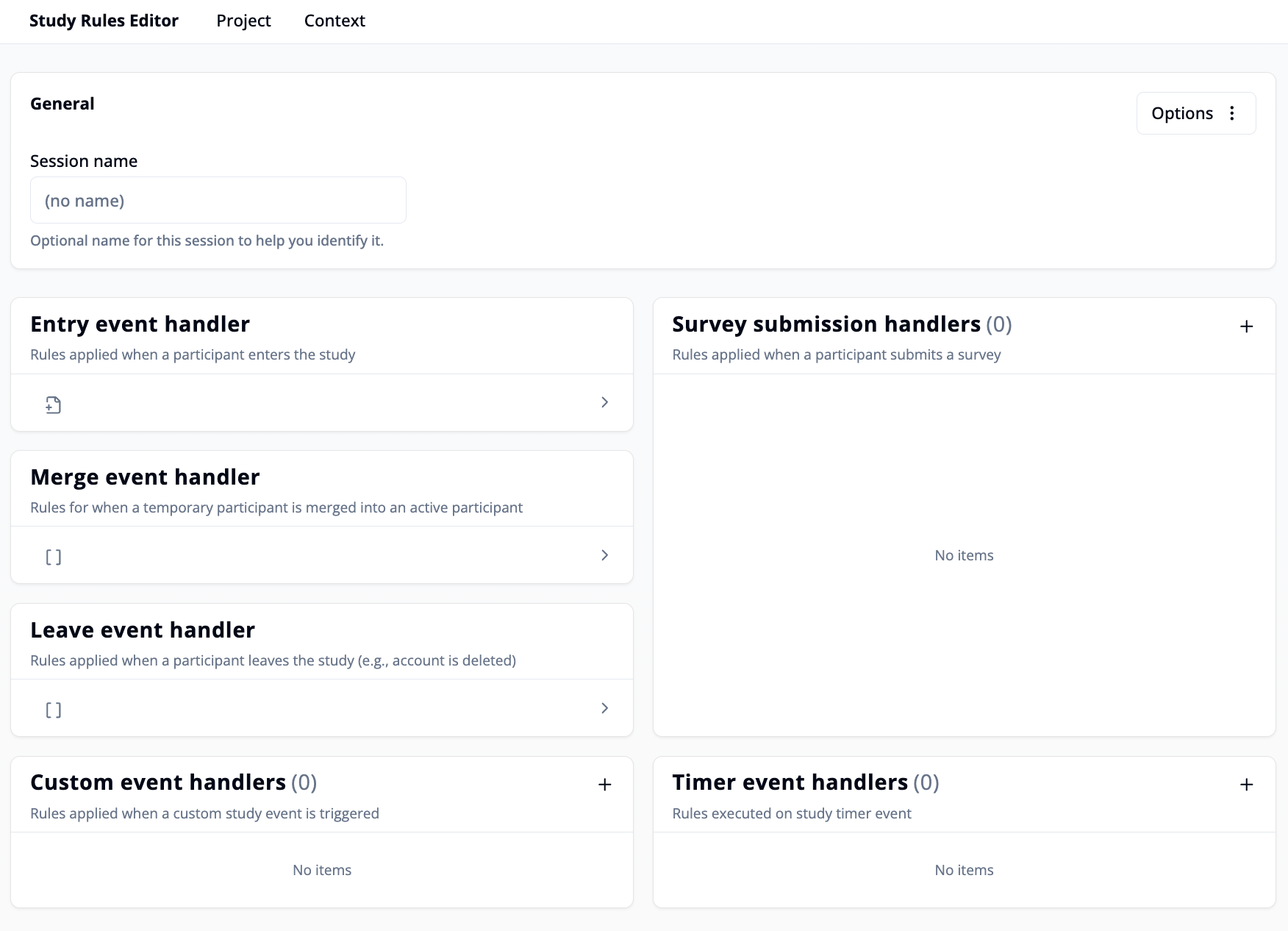
Top Navigation Bar
- "Project": Click here to open an existing project, save your project or export the study rules.
- "Context": The editor context provides access to study and message keys, participant flags, reports and external event handlers that can be referenced in your rules. You can import a context from a recent session or create a new one via the "Open Context Editor" button.
General
-
"Session name": You can give the current session a name to help identify it later.
-
"Options": In the top-right corner, the Options menu lets you save or export your study rules as a file.
Event Handlers
Event handlers define what should happen when a certain event occurs in the study. Each handler can contain one or more rules that are applied in sequence.
1. Entry event handler
Rules defined here are applied when a participant enters the study.
- Sending a welcome message
- Assigning an intake survey to collect initial data
- Scheduling a reminder message for the intake survey
2. Survey submission handlers
Rules defined here are applied when a participant submits a survey. You can define multiple handlers (one for each survey).
- Deleting the survey assignment and triggering new follow-up assignments
- Updating participant flags based on responses
- Sending notifications to researchers
- Creating reports
- Removing scheduled reminder messages and creating new ones for follow-up surveys.
- Sending data to external services to evaluate survey answers
3. Merge event handler
Rules defined here are applied when a temporary (or virtual) participant is merged into an active participant account.
- After completing a survey without logging in, the participant decides to create (or use an existing) account and continue with the study
- "Virtual participants" created by researcher accept invitation and sign up with their own account
4. Custom event handler
Rules defined here are executed when a custom event is triggered, for example, when a participant clicks a button to order a test kit. Used for small, occasional actions that don't require a survey response.
- Creating a report
- Updating participant flags
- Rescheduling surveys
- Enabling an external event handler
5. Timer event handler
Rules defined here are executed when a study timer event occurs (e.g., at scheduled intervals or specific times).
- Sending periodic reminder messages
- Scheduling follow-up surveys
- Automatically updating participant data over time
6. Leave event handler
Rules defined here are applied when a participant leaves the study (e.g., when their account is deleted or deactivated).
- Marking the participant as deleted
- Removing confidential responses from the study database
- Sending a goodbye message
Context Editor
The Context Editor is a configuration interface within the Study Rules Editor. It allows you to define the keys and identifiers that are used in event handlers, conditions, and actions throughout your study logic. These definitions ensure that all references to surveys, messages, flags, and other elements are valid and consistent.
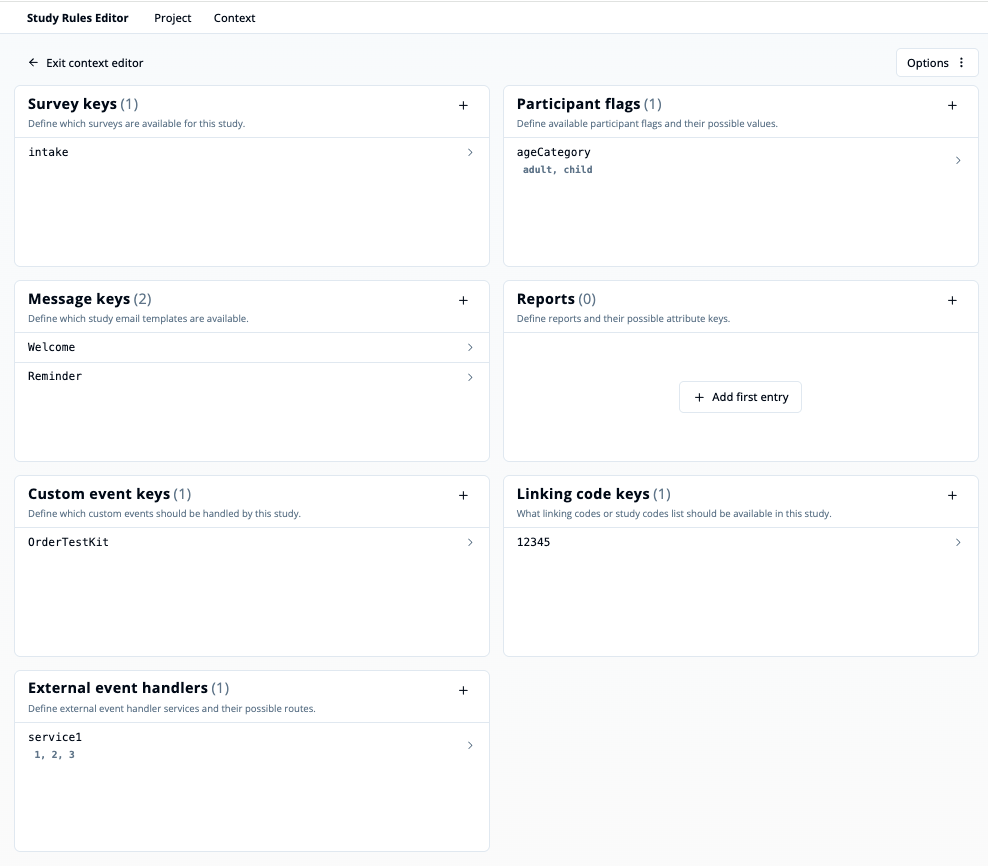
How to Access the Context Editor
- Open the Study Rules Editor.
- Click on the “Context” tab in the top navigation bar.
- Select "Open Context Editor".
- You will now see a structured overview of all configurable keys used in your study.
Context Editor Menu Options
At the top of the context editor, you’ll find a dropdown menu with two main options:
- Exit Context Editor: Closes the context editor and returns you to the main Study Rules Editor view.
- Use recent context: Displays a list of previously used context configurations. You can select one from the list to quickly reopen and continue working with an existing setup.
Sections of the Context Editor
Each section corresponds to a different type of key or identifier used in your study logic:
1. Survey Keys
Define all surveys that can be referenced in rules.
Assign or remove surveys, check submission status, or schedule based on survey keys.
2. Participant Flags
Define flags that represent participant states or attributes.
Set or check flags like eligibility, group assignment, or progress.
3. Message Keys
Define all messages (e.g., emails or notifications) that can be scheduled or removed.
Trigger sending of onboarding, invitation, or reminder messages
4. Reports
Define report keys and their attribute keys.
Initialize, update, or cancel reports with structured data.
5. Custom Event Keys
Define custom events that can be handled by the study.
Trigger rules based on external or participant-driven events.
6. Linking Code Keys
Define which linking codes or study-wide code lists are available.
Assign or remove codes used for participant grouping or access.
7. External Event Handlers
Define external services and their available routes.
Send data to external systems or trigger external workflows.
Adding or Editing Entries
- Click the “+” button next to any section to add a new key.
- Edit existing entries by clicking on them directly.
- For Participant Flags, Reports and External Event Handlers, you can define possible values for corresponding keys.
- Remove keys by right-clicking on them and selecting the "Delete Entry" option.
Options Menu
- Use the “Options” button in the top-right corner to save your context to file or open a new context from file.
For a complete list of available expressions and actions you can use in your study rules, see the Methods of the study engine.