 CASE Framework
Surveys Workspace
Manage creation, organization, and versioning of surveys within a study.
← Back to Study Configurator Overview
Interface Layout
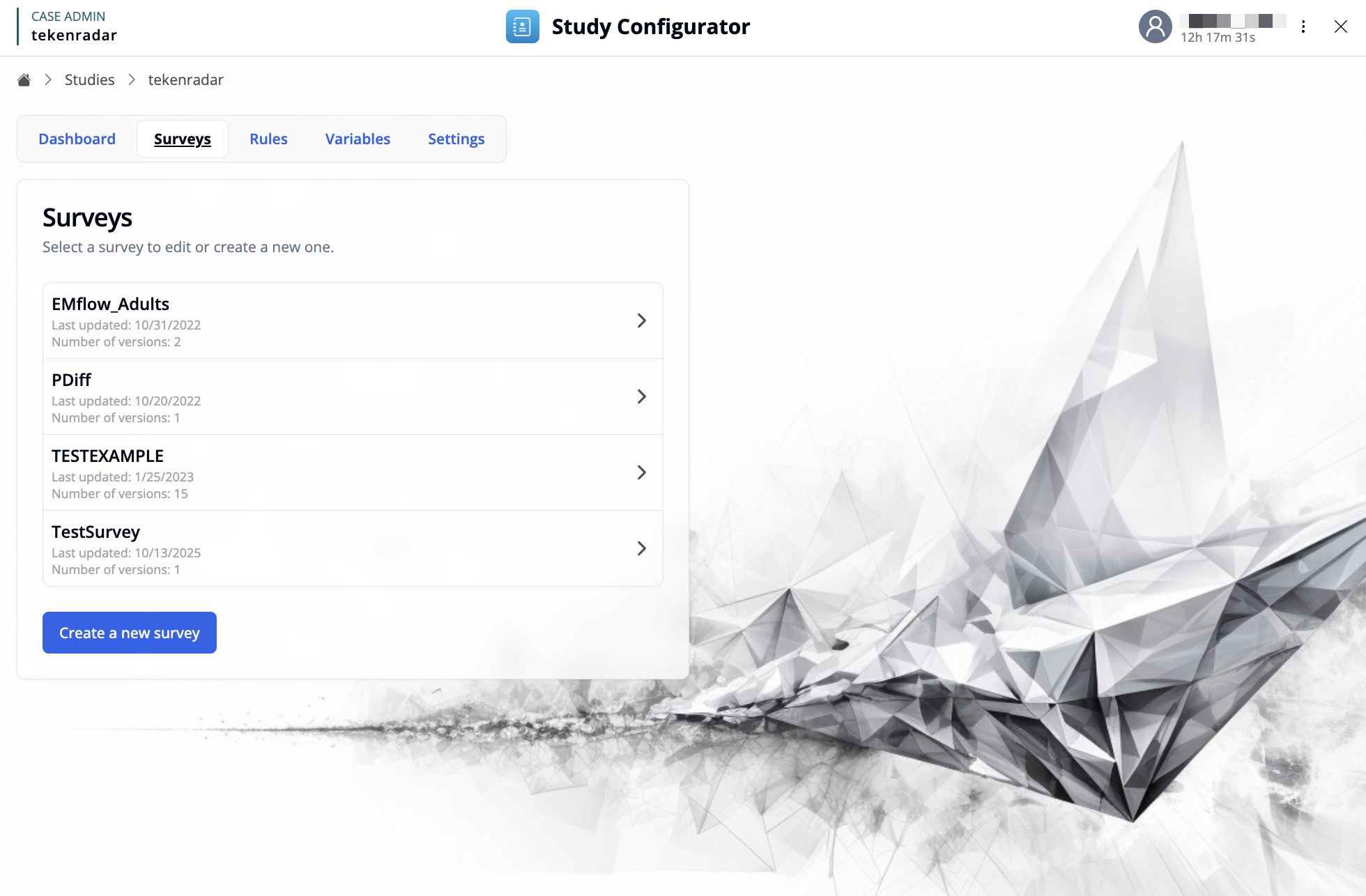
The Surveys workspace provides an interface for creating, editing, and organizing all surveys within your study. All surveys are displayed in a list, with each survey showing:
- Survey Name: The unique identifier for each survey
- Last Updated: The date when the survey was last modified
- Number of Versions: How many versions exist for each survey, allowing you to track changes over time
Creating New Surveys
The "Create a new survey" button at the bottom of the list provides two options for adding a new survey to your study:
-
Open Editor: Launch the visual Survey Editor to design a new survey from scratch.
-
Upload Survey File: Import an existing survey definition file (JSON format) from your computer.
Survey Detail View
Click on a survey from the list to see more details of the survey.
Quick Actions
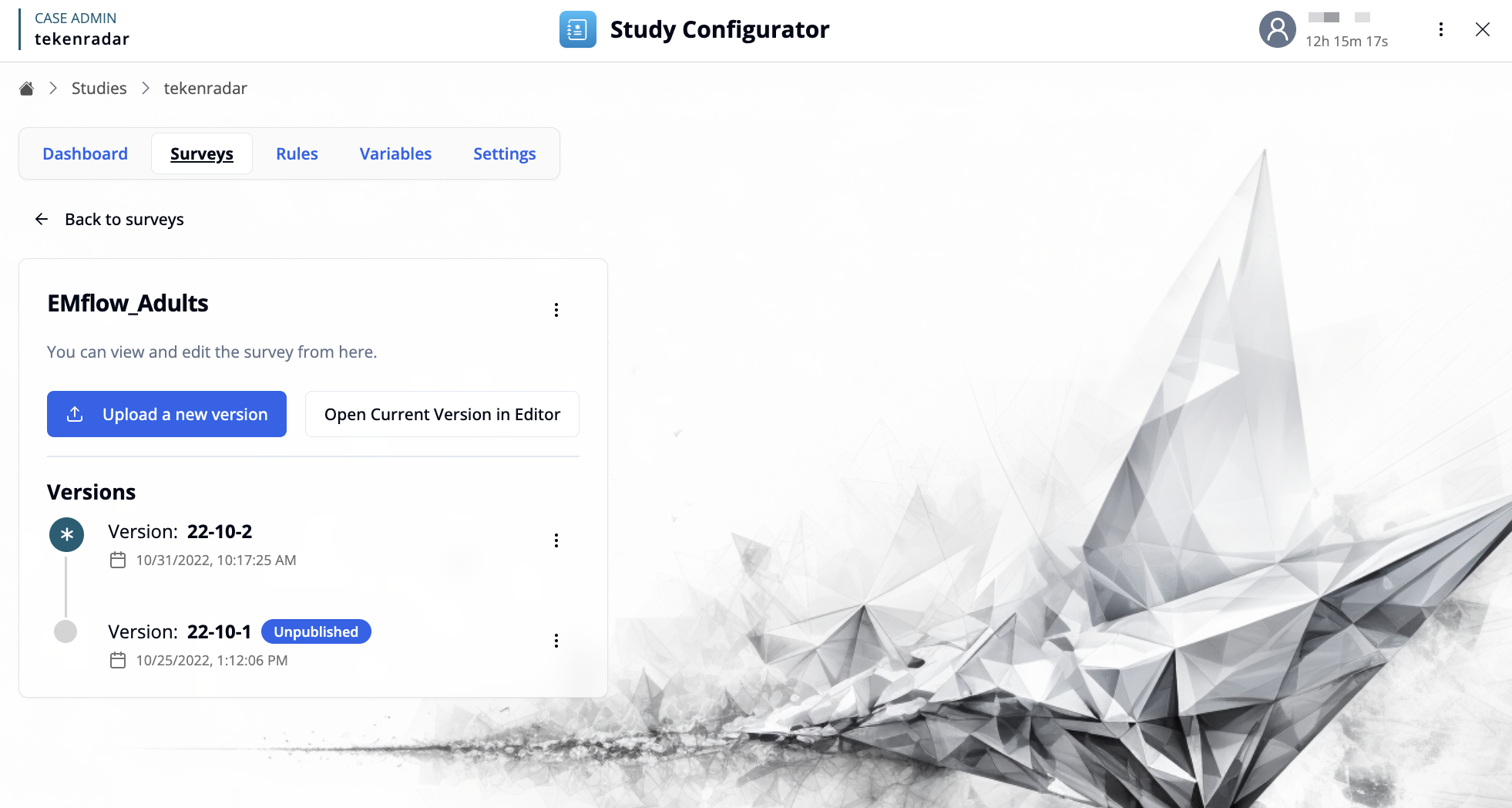
The detail view offers two primary action buttons:
- Upload a new version: Import a survey definition file (JSON format) to create a new version of the survey.
- Open Current Version in Editor: Launch the currently active version in the Survey Editor to modify questions and survey structure.
Additionally, the three-dot menu next to the survey name provides:
- Unpublish: Make the survey unavailable for participants.
Version Management
The Versions section displays a chronological list of all survey versions, enabling you to:
- Track changes across different versions
- Decide which version should be active in your study
The version history displays the following information for each version:
Version Information
- Version Number: A unique identifier (e.g., 22-10-2, 22-10-1)
- Publication Status: The last published version appears with a star icon and is actively used in the study
- Timestamp: The exact date and time when the version was created or last modified
Only one version can be published at a time. Publishing a new version automatically unpublishes the previously active version.
Version Actions
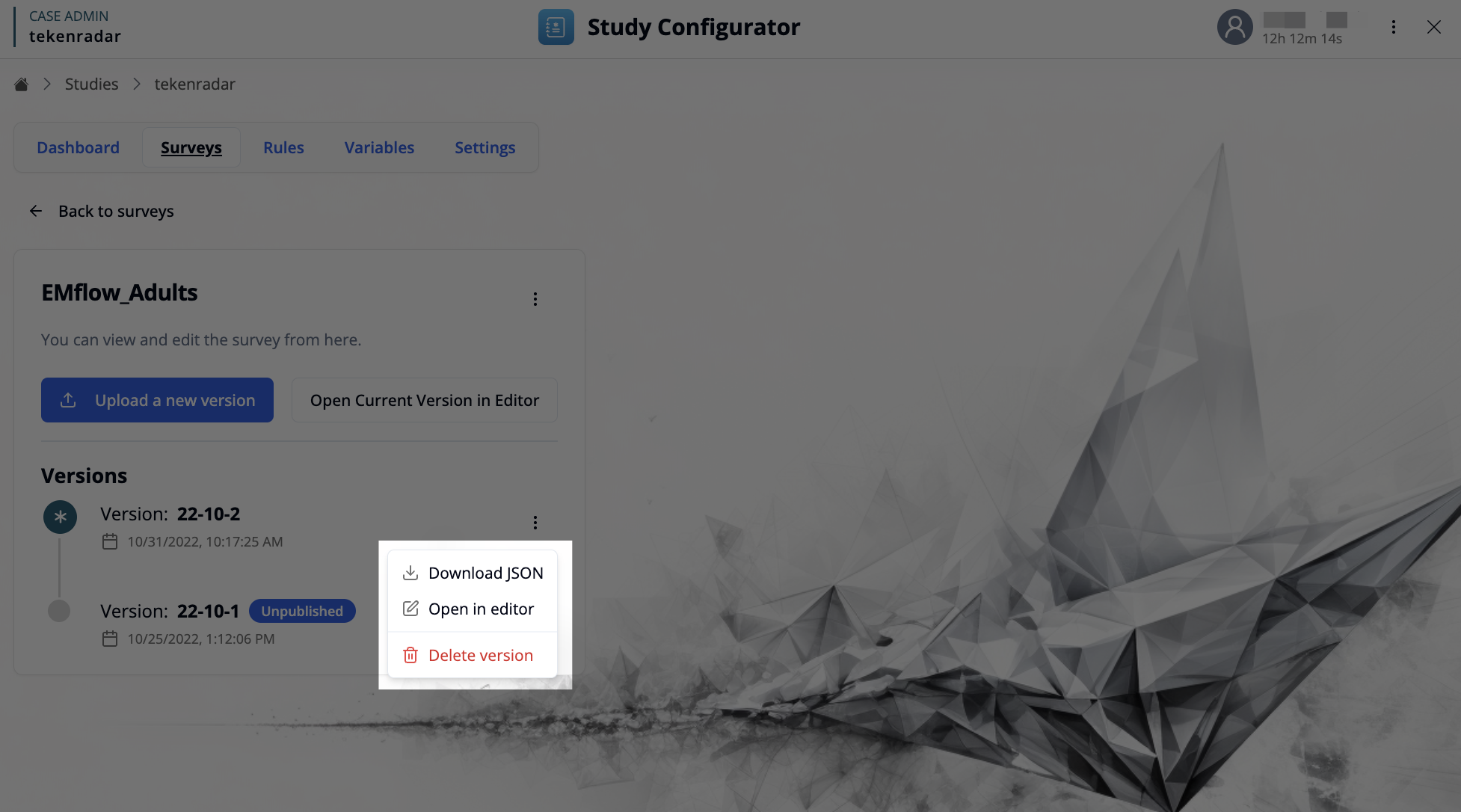
Each version has an options menu (three-dot icon) with the following actions:
- Download JSON: Export the survey version as a JSON file for backup or sharing
- Open in editor: Load this version in the Survey Editor to review or create a modified copy
- Delete version: Permanently remove this version (cannot be undone)