 CASE Framework
Study Variables and Counters
Configuring study-wide variables, viewing and editing counter values
Introduction
The Variables tab in the Study Configurator provides tools to manage two important concepts for controlling study behavior: Study Variables and Study Counters. These can be integrated into study rules and questionnaires to control the survey logic based on their values.
Study Variables
What are Study Variables?
Study variables are configurable parameters that can be referenced in study rules and questionnaires to control study behavior. By changing the value of a study variable, administrators can dynamically adjust the logic without modifying the rules or questionnaires themselves. While "participant flags" control individualized logic at the participant level, study variables provide a way to control "global" (study-wide) behavior.
A study variable has a study-unique reference key, a value and a value type.
The value type can be one of the following:
stringintegerfloatbooleandate
Each study can define its own set of study variables. The study administrator can create new variables, change their values and configuration, and delete them if needed. For improved readability, the study administrator can also assign a human-readable label and description to each study variable.
- Flag: Set a flag to true or false to control the visibility of a question or section.
- Category: Choose from a dropdown to change the study flow (e.g.,
phase1->phase2, with different behavior for each phase). - Threshold: Set a threshold for a numeric value to trigger a specific action (e.g., if study-counter reaches the threshold, send a researcher notification).
Managing Study Variables
Creating a Study Variable
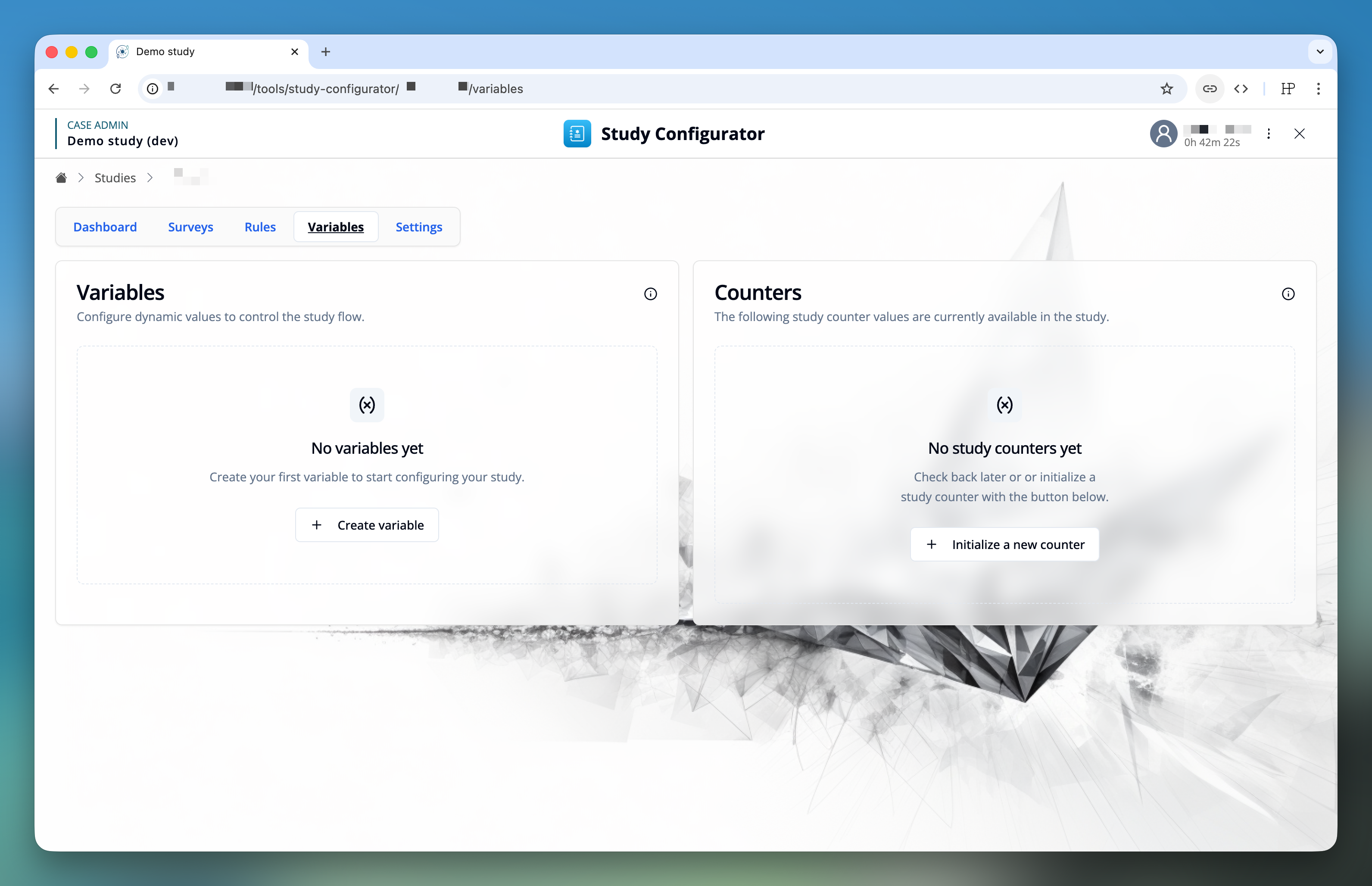
To create a new study variable, click the "Create variable" button. This will open a modal with the editor interface for the study variable.
Enter a unique identifier key for the study variable. This key is used to reference the study variable in other parts of the application.
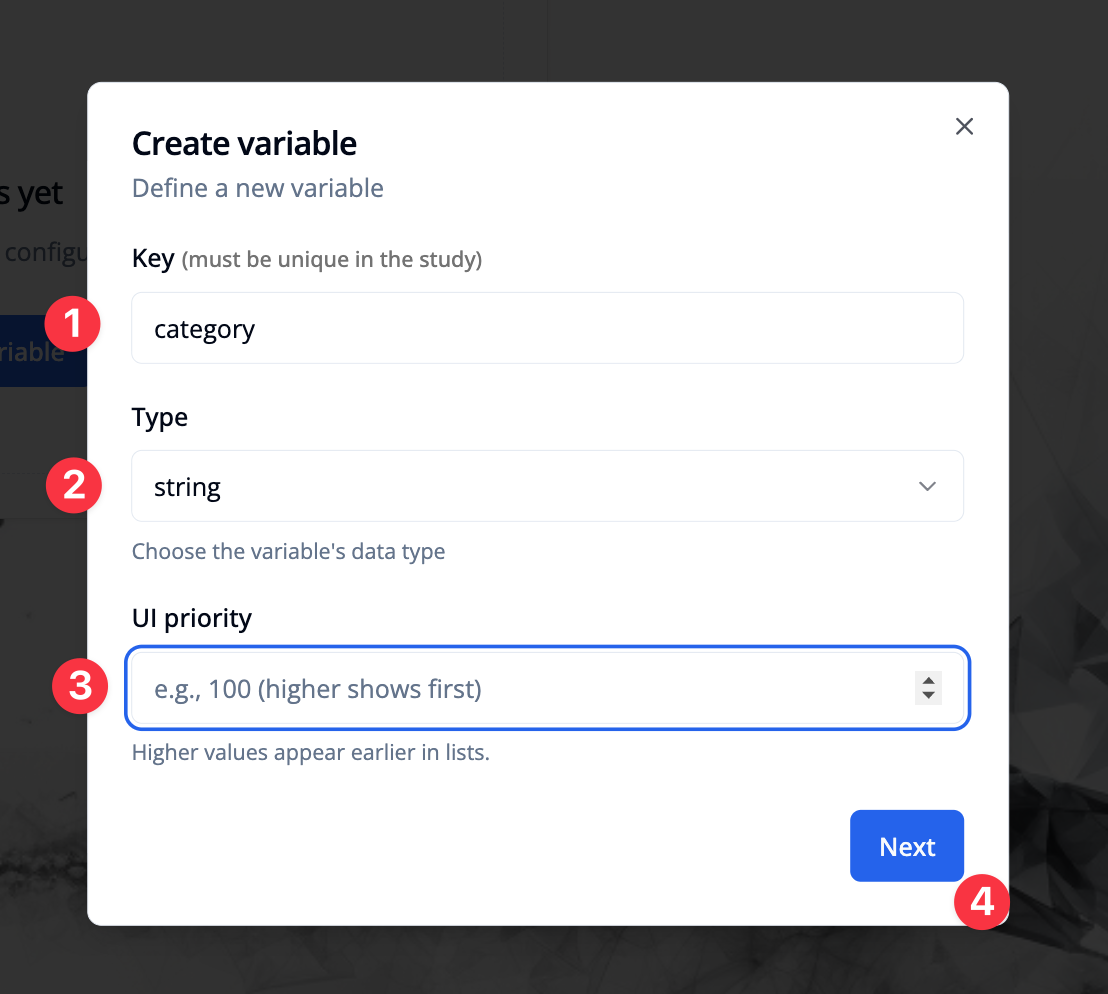
Select the value type of the study variable. (string, integer, float, boolean, date)
Optionally, enter the "UI priority" of the study variable. This determines the order of study variables in the list — higher values appear first.
Click "Next" to open the "Configuration" tab.
Optionally, enter a "Label" for improved readability in the list, in case the key is not self-explanatory.
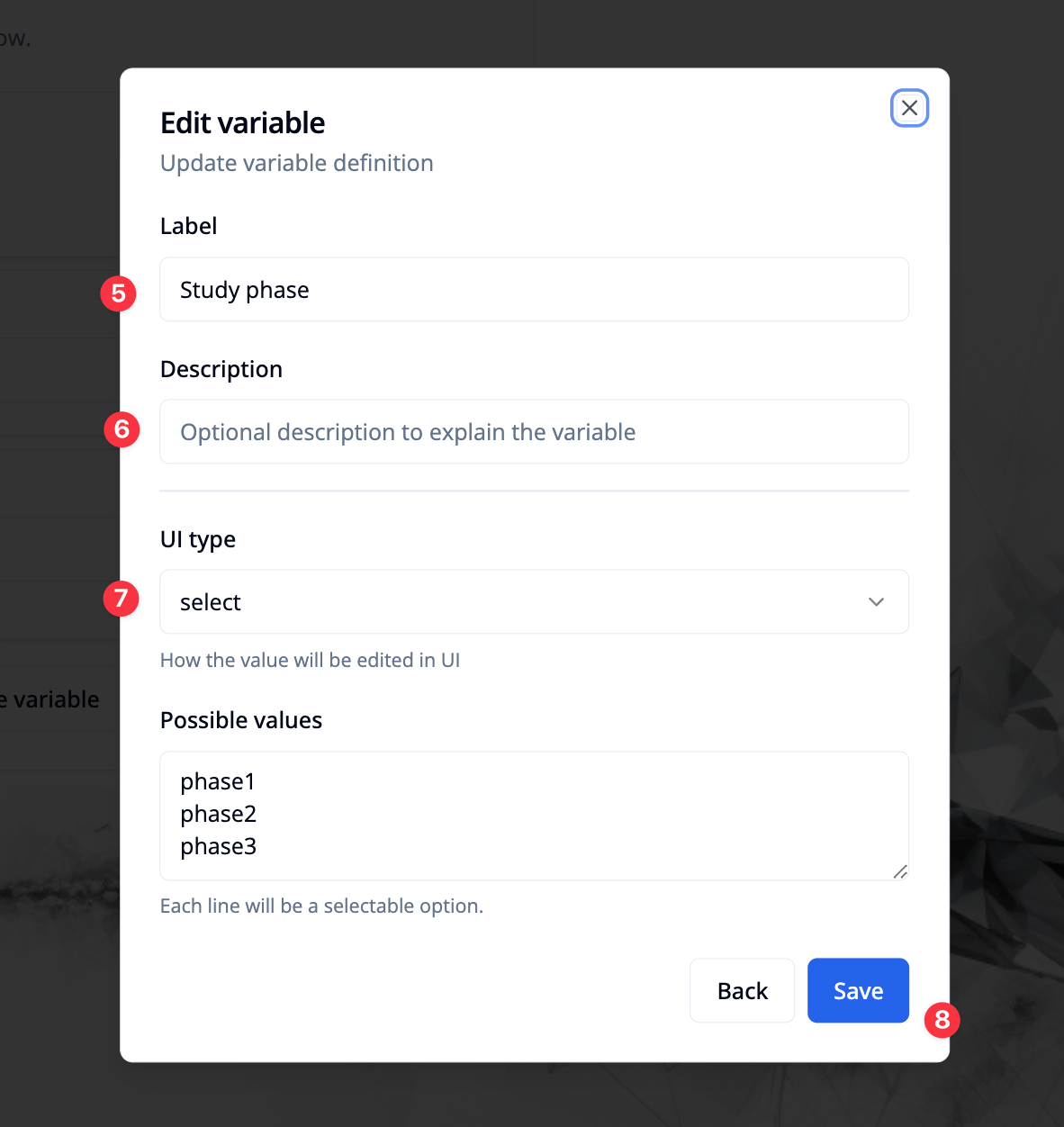
Optionally, enter a "Description" for even more context in the list. This will be shown below the value controller in the list.
Type-specific configuration for the study variable, depending on the value type. For example, for numbers and dates you can define a minimum and maximum value. For string variables, you can choose between a dropdown with predefined options or a free-text input field.
Click "Create" or "Save" to add or update the study variable.
Editing a Study Variable
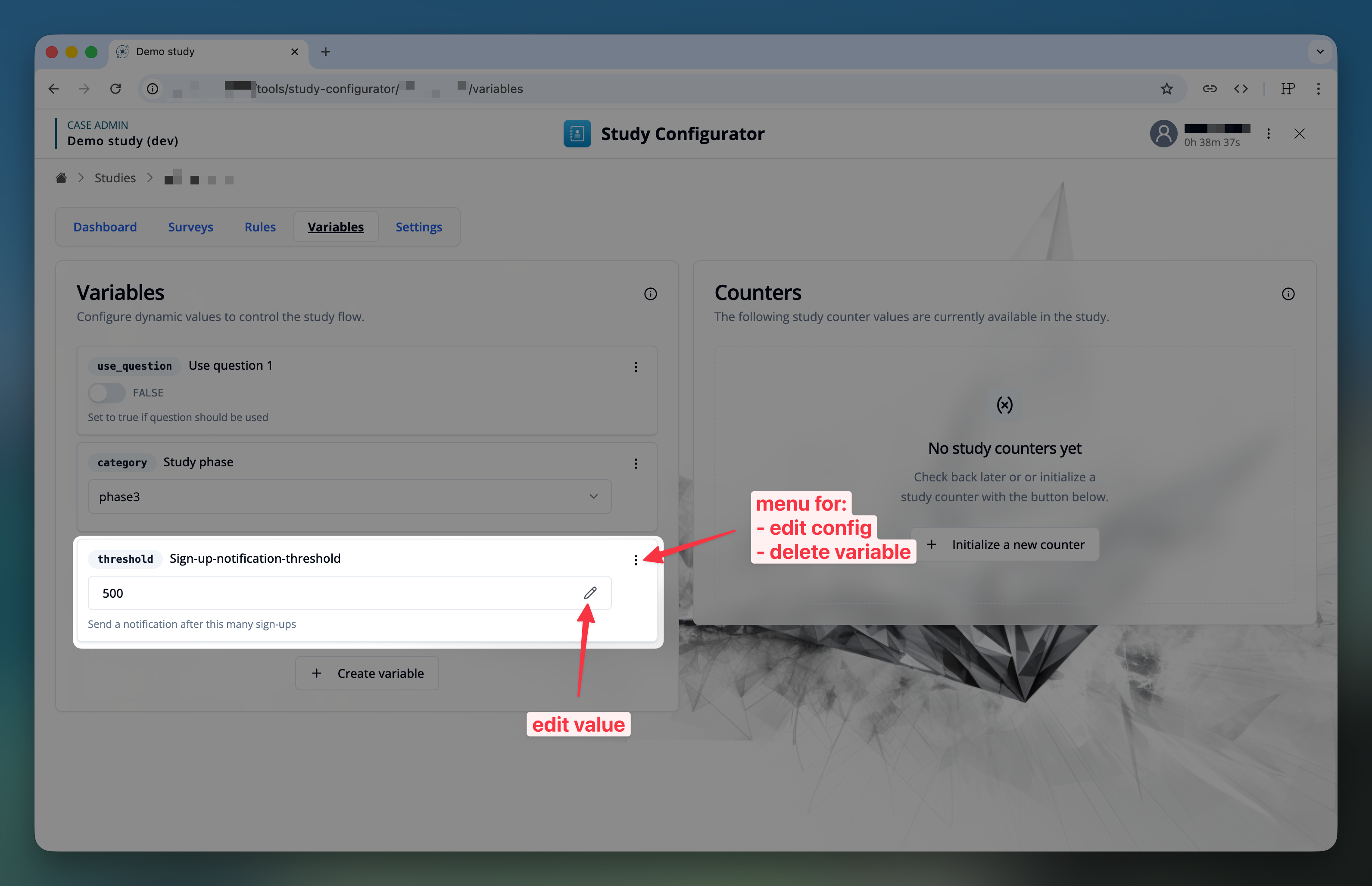
- To edit the value of a study variable, you can use the value input controller in the variable list directly. Depending on the value type, this might be a simple switch, a datepicker or a text/number input.
- To edit the configuration of a study variable, use the three-dot menu on the right of the variable's card, and select "Edit configs".
- To delete a study variable, use the three-dot menu on the right of the variable's card, and select "Delete".
Using Study Variables
Study variable values can be used in the following places:
Study rules/study actions (server-side):
- expressions: retrieve and use the value of the study variable in a condition or as a parameter of an expression
- available study expressions: conditional expressions or numerical and text expressions.
- actions: update the value of the study variable
Survey conditions (client-side):
- expressions: retrieve and use the value of the study variable in the condition
- available survey expressions: conditional expressions or numerical and text expressions.
Other application-specific usage might be available if the application supports it.
Study Counters
What are Study Counters?
A study counter is always an integer number and can be incremented by study rules or actions (see also). Each counter has a scope key, which is used to identify the counter within the study.
Prop
Type
Counters can be used to track different aspects of the study, and their values can be accessed by study expressions in the study engine (see also).
- Event count: Track the number of events that have occurred in the study. E.g., if a participant sends in a specific combination of answers, increment the counter.
- Participant counter: Track the number of participants in the study. Count all or eligible participants. This can be used for example to assign a unique study code to each participant.
Managing Study Counters
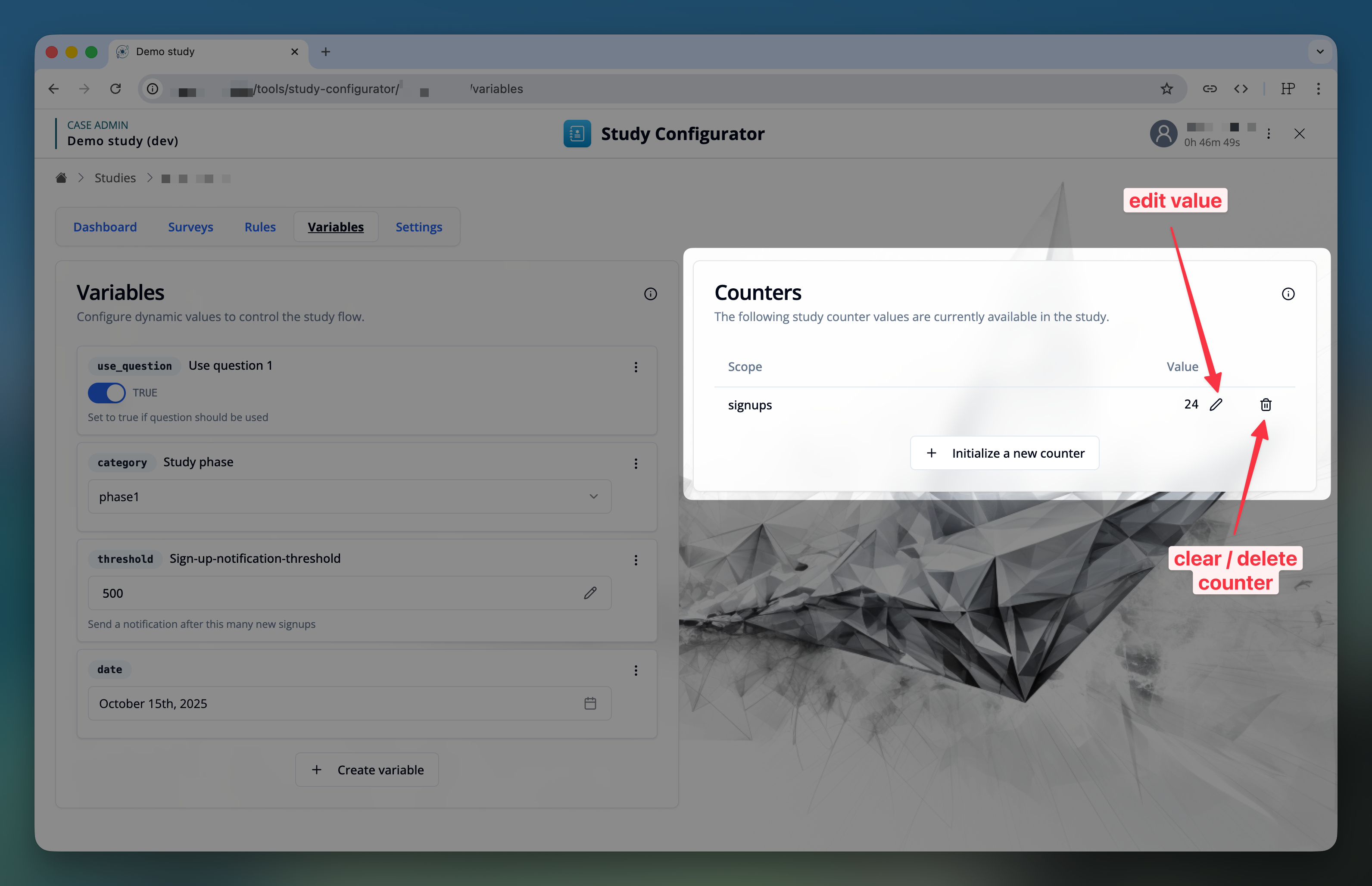
The counter management view is located next to the study variables in the "Variables" tab.
Currently supported are the following features:
- All counters are displayed with their scope key and value.
- Initialize a new counter: Click the "Initialize new counter" button, enter a unique identifier in the "Scope" field, set a starting value in the "Value" field, and click "Save".
- Change the value of a counter to a specific value: Use this action carefully, considering the impact on the study flow and the study rules. (E.g., if you are using a counter to generate a sequential ID for a participant, changing the value of the counter will affect the ID assignment.)
- Delete a counter: This will remove the counter from the study, until it is initialized again. Initialization might happen through a study rule or study action, so the counter value for the scope might appear again automatically.