 CASE Framework
Study ConfiguratorStudy Configurator
Study Configurator Overview
Overview of the study configurator interface
Study Configurator Dashboard
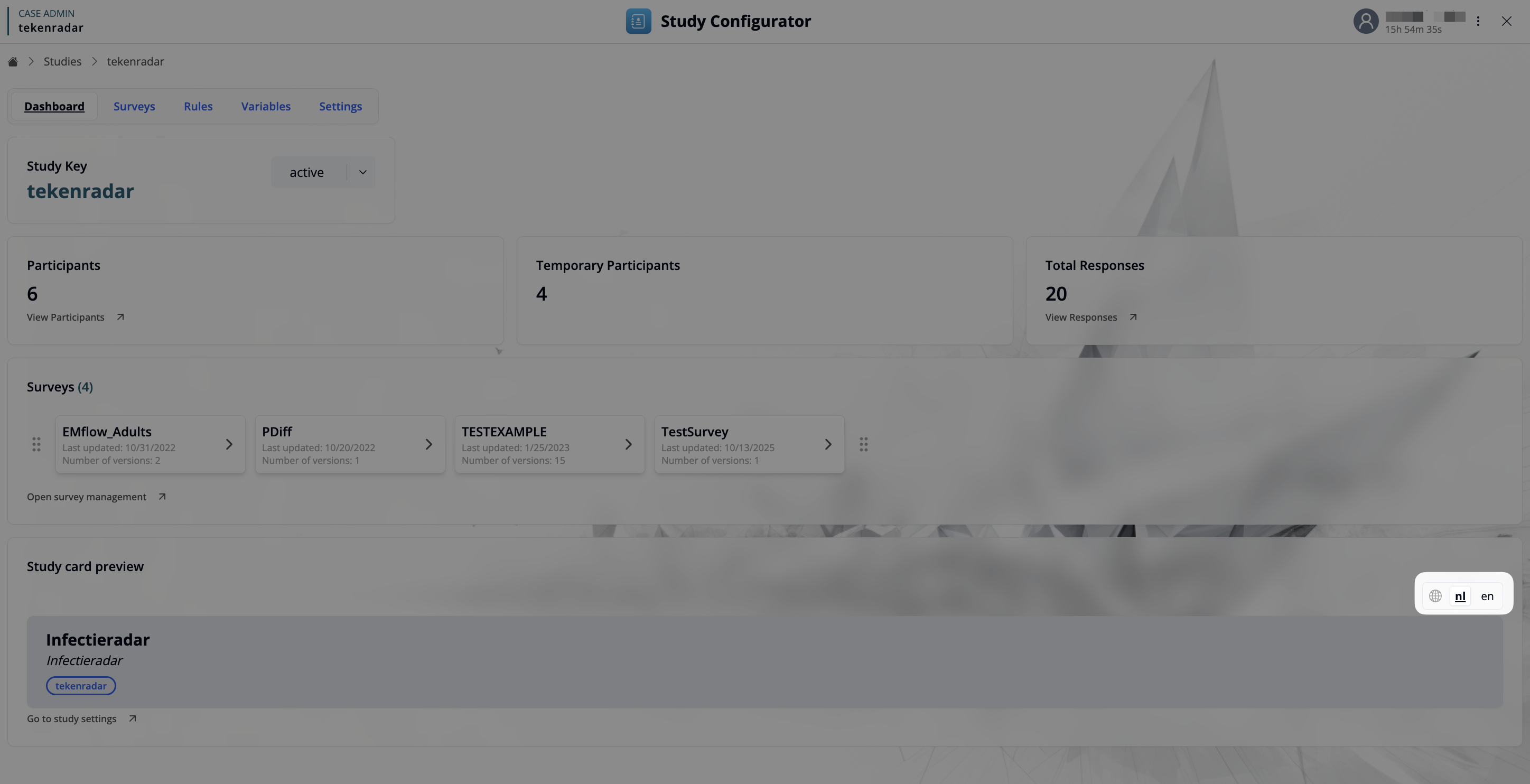
The Study Configurator lets you manage study-wide configuration: surveys, rules, variables, and settings. The dashboard provides a quick summary and entry points to all relevant actions.
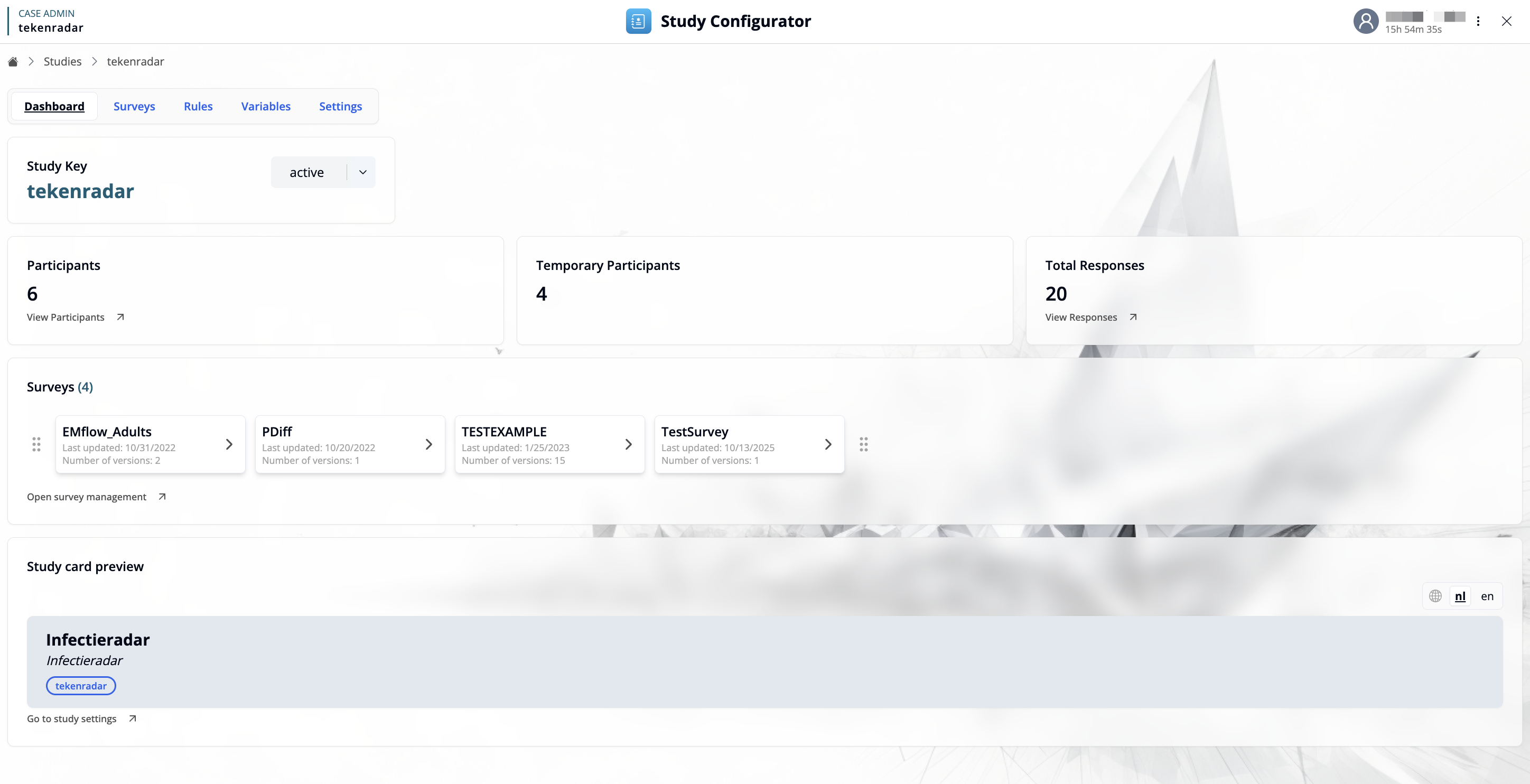
Top Navigation Bar
- [Dashboard]: Returns to the main overview of the study.
- Surveys: Manage surveys for the current study.
- Rules: View published rules versions and upload a new version.
- Variables: Define and manage key–value pairs used across rules and surveys.
- Settings: Configure settings like status, code lists, notifications, and access.
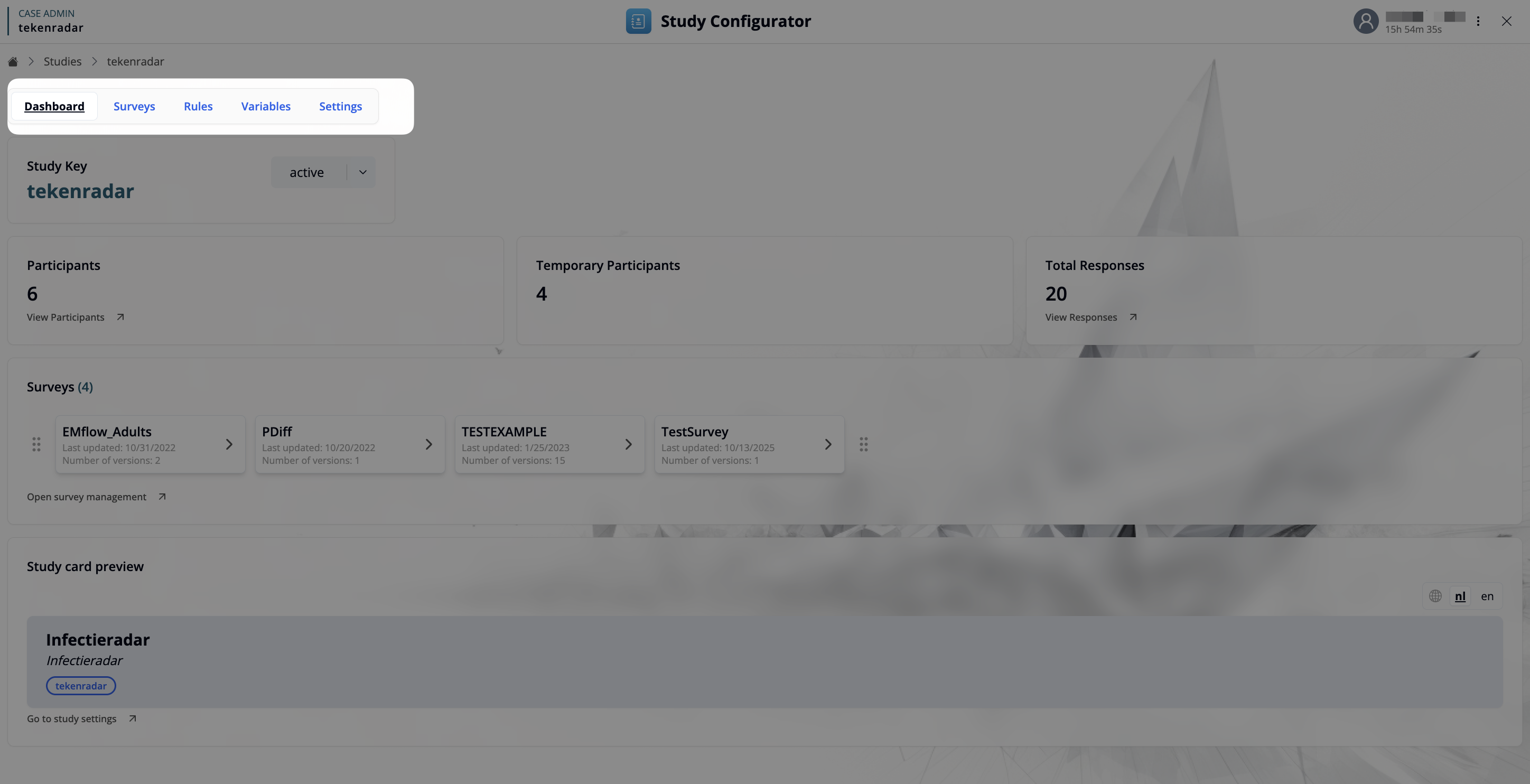
Study Header
- Study Key: Displays the unique study key (e.g.,
tekenradar). - Status Toggle: Shows current status (e.g.,
active). Use the dropdown to update the study status when needed.
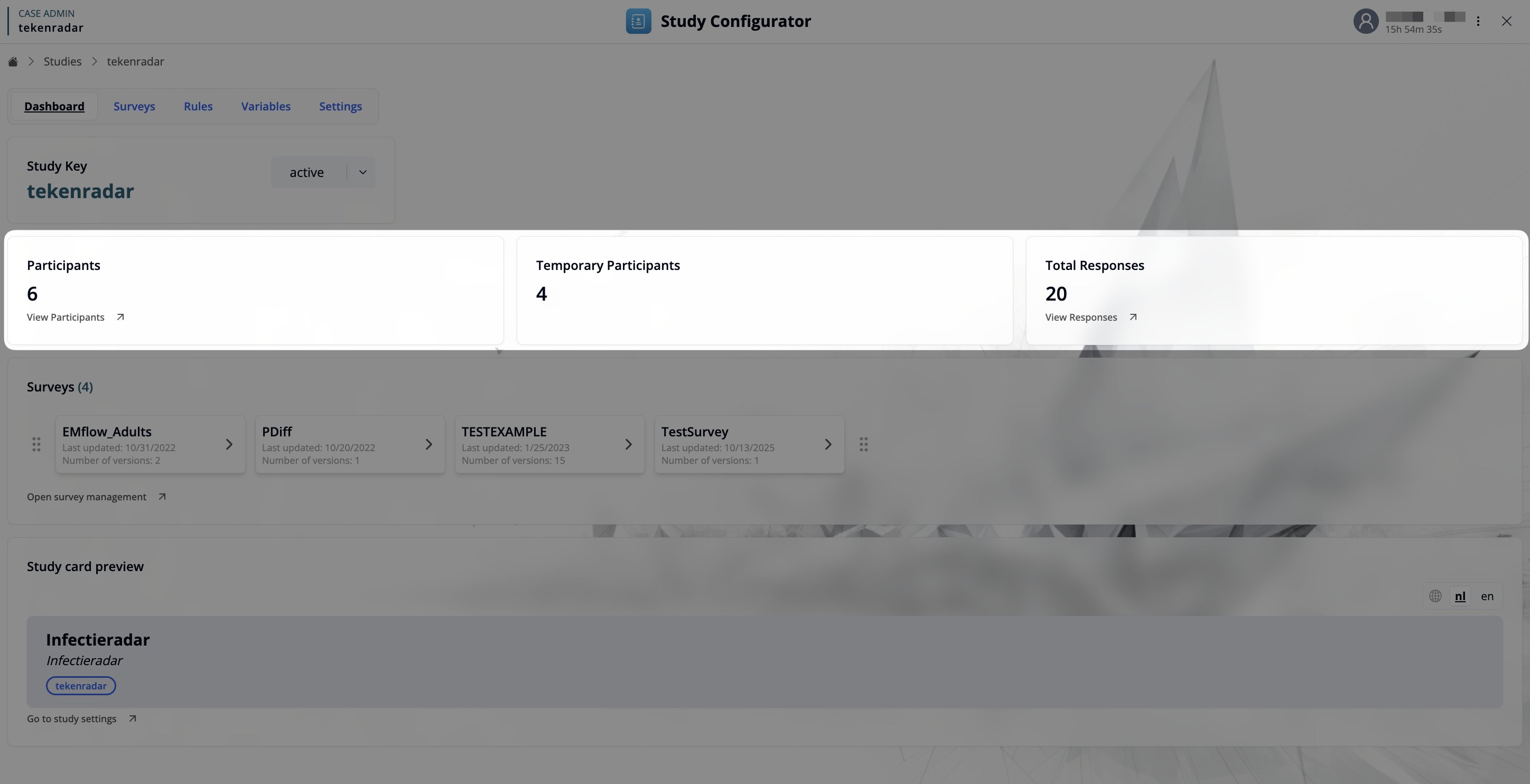
Overview Cards
- Participants: Shows the number of registered participants. Use “View Participants” to open participant management.
- Temporary Participants: Shows the number of temporary participants (e.g., pre-registration).
- Total Responses: Shows the total number of submitted survey responses. Use “View Responses” to open the responses explorer.
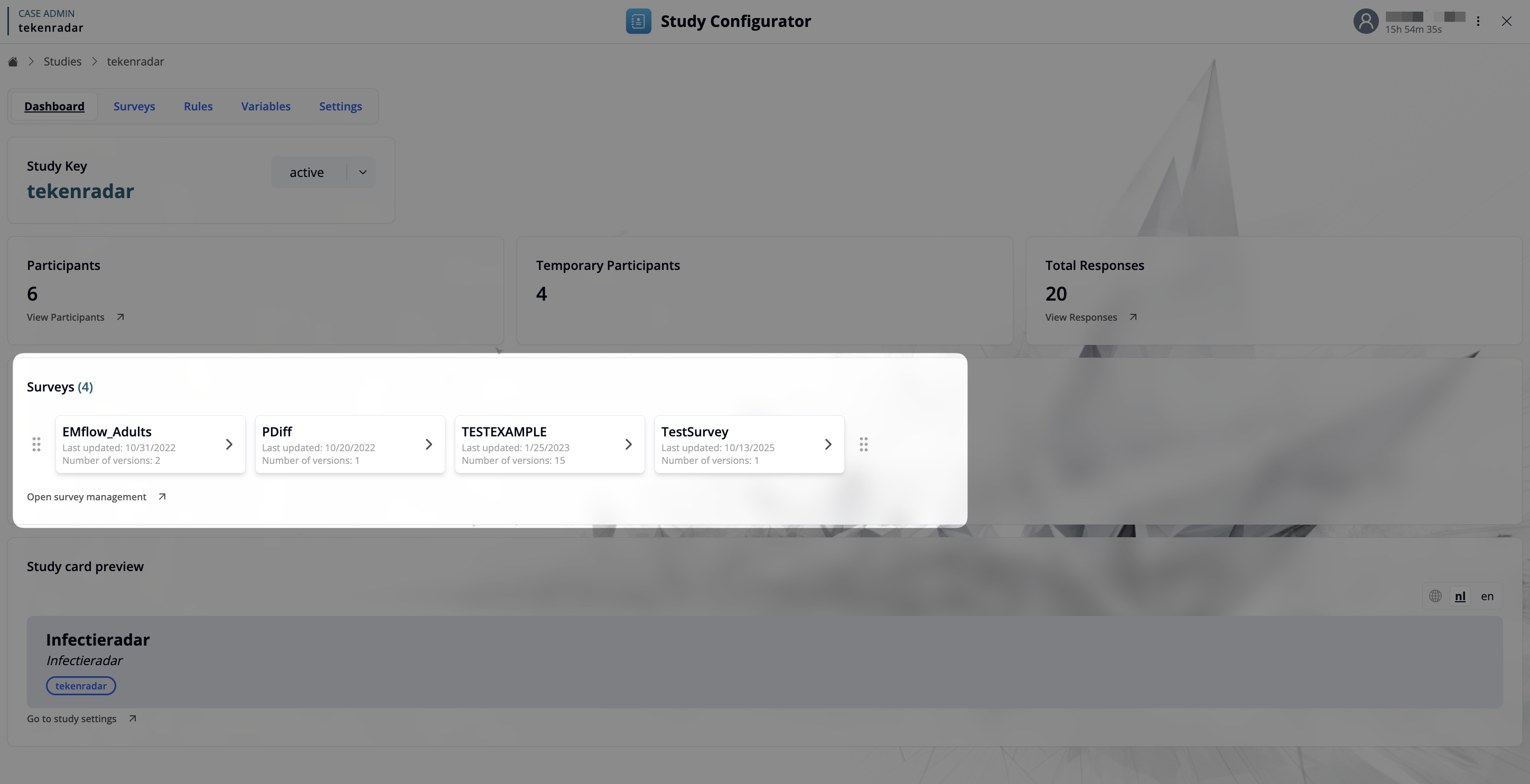
Surveys
- Displays all surveys in the study, including last updated date and number of versions.
- Click a survey card to open survey management for that survey.
- The link Open survey management takes you directly to the central surveys management page.
Study Card Preview
- Shows how the study card is presented in management views.
- Includes the name, description and tags of the study and a link to go to study settings.
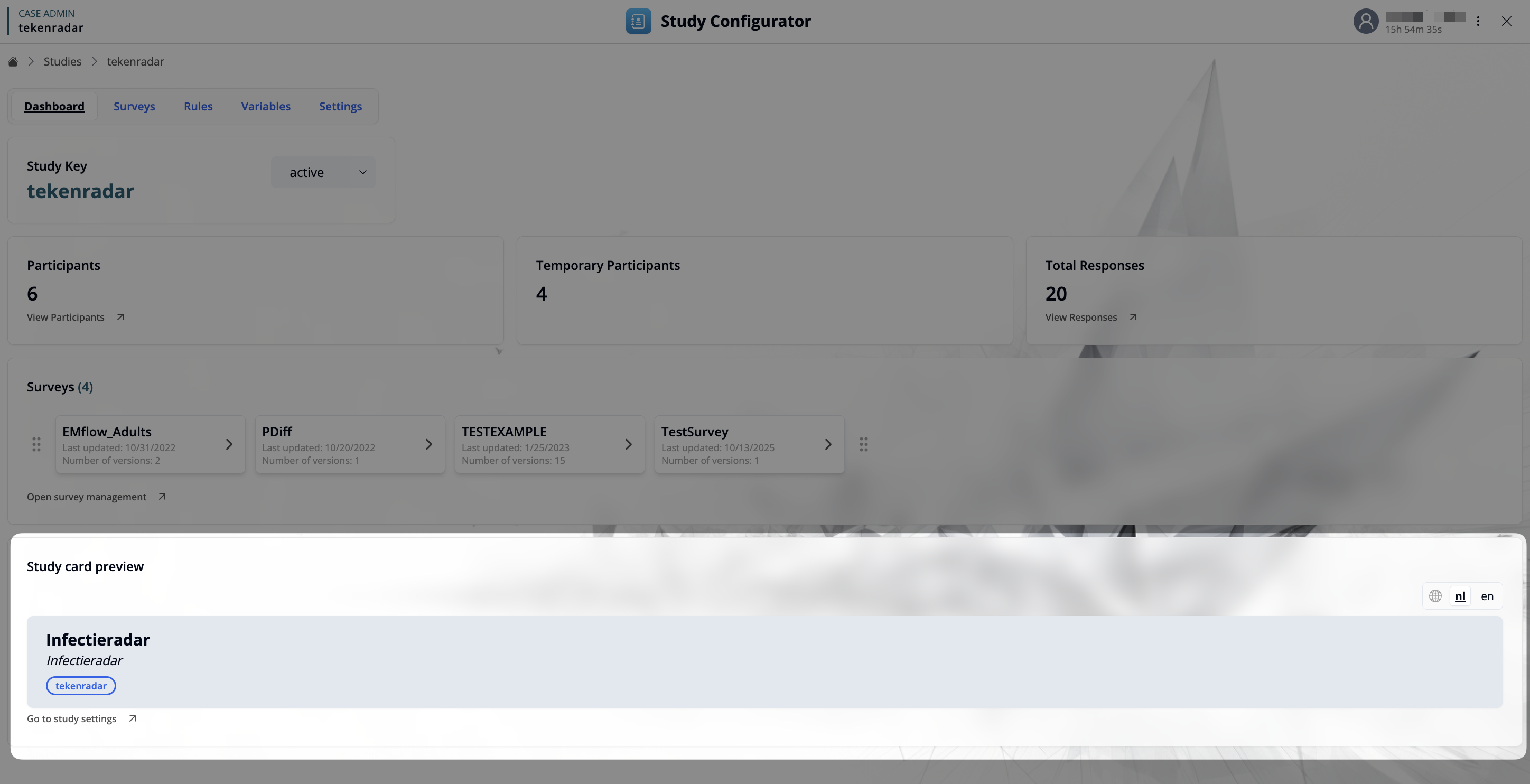
Language Toggle
- Switch interface labels between supported languages (e.g.,
nl,en).