 CASE Framework
Reports
Documentation for reports
Introduction
A "report" is a data entry for a participant with the following fields in the database:
Prop
Type
Report data item
Each entry in data has the following structure:
Prop
Type
Example:
{
  "key": "studyID",
  "value": "028"
}
Use cases for reports
-
Data projection: when a participant submits a survey response, selected information can be extracted and stored in a report. Multiple reports (with different keys) can be generated from the same response.
-
Reference earlier responses for the participant: reports can be used to ask about previously submitted responses while minimizing the exposed information.
-
Event logging: participant actions can be stored as reports. For example, clicking a button can create a report entry (e.g., ordering a test kit through the website).
Accessing reports in the UI
Simplified table view
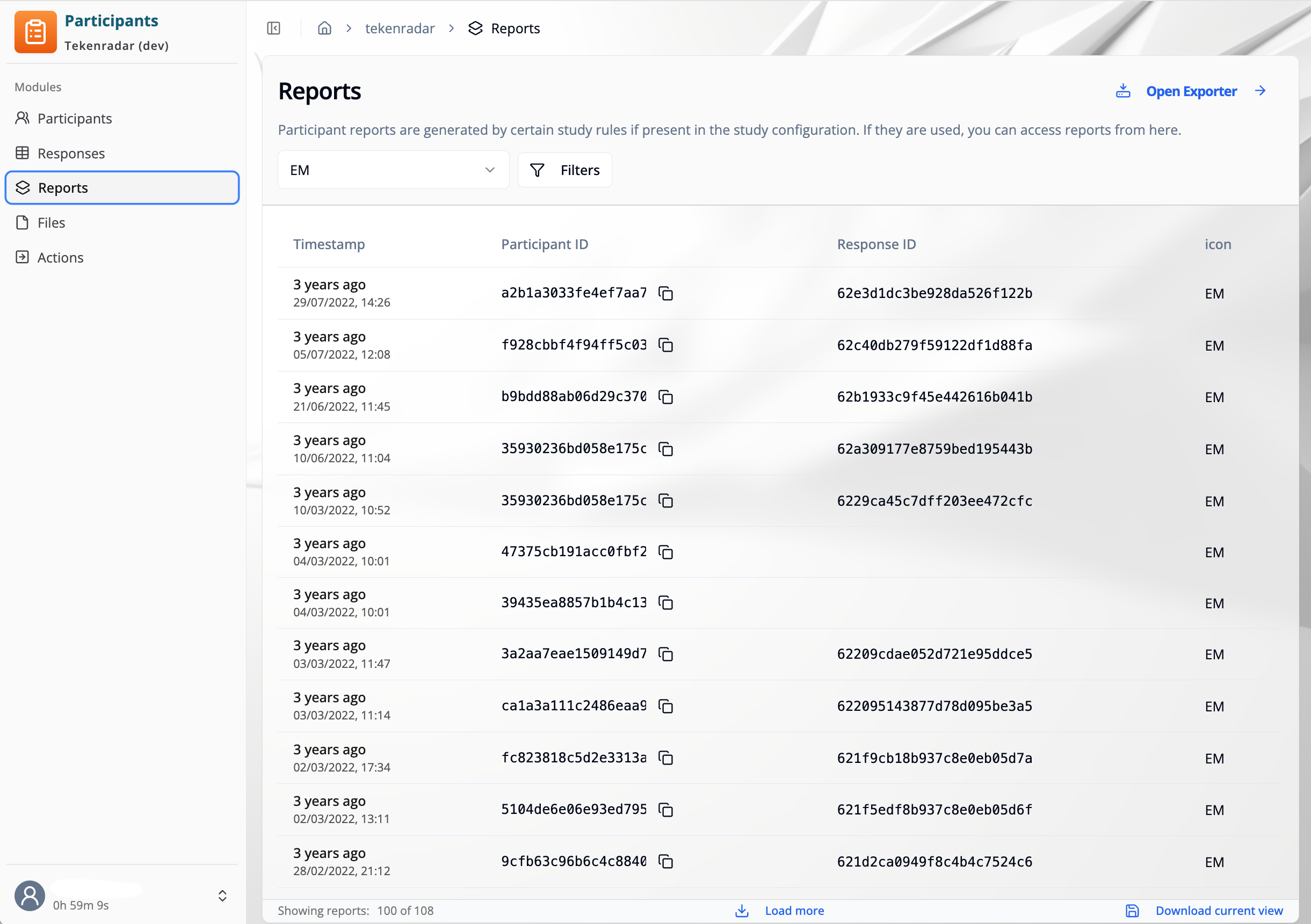
To access the reports for a study, go to the "Participants" module, select a study if necessary, and click the "Reports" option in the left sidebar. On this page, you can see a paginated list of reports for the study.
In the simplified table view, reports are shown in a flattened format. Data attributes appear as separate table columns, and the dtype field is not included.
Use the bulk download in raw format if you need the complete report structure.
Filter reports
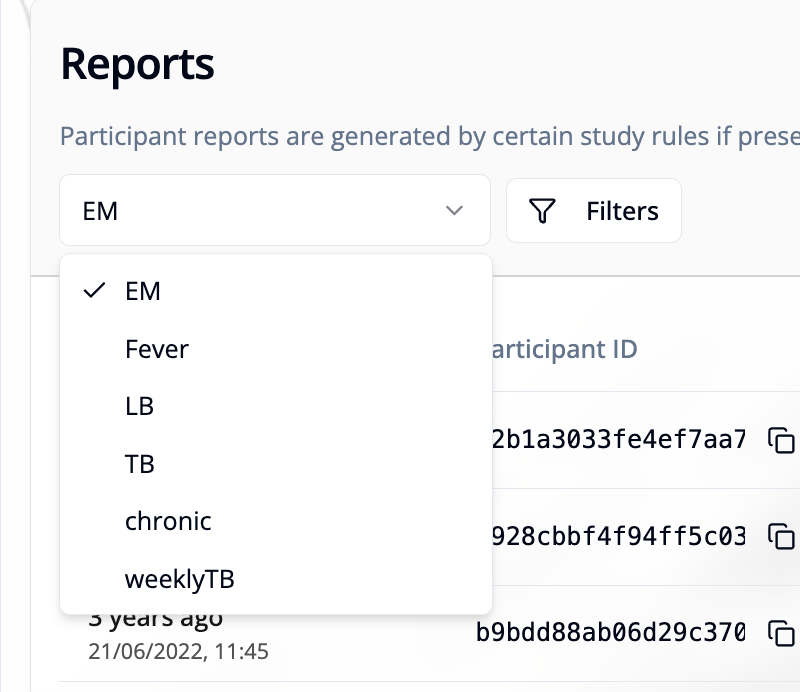
Report key selector: Use the report key selector (top left above the table) to select which reports to show.
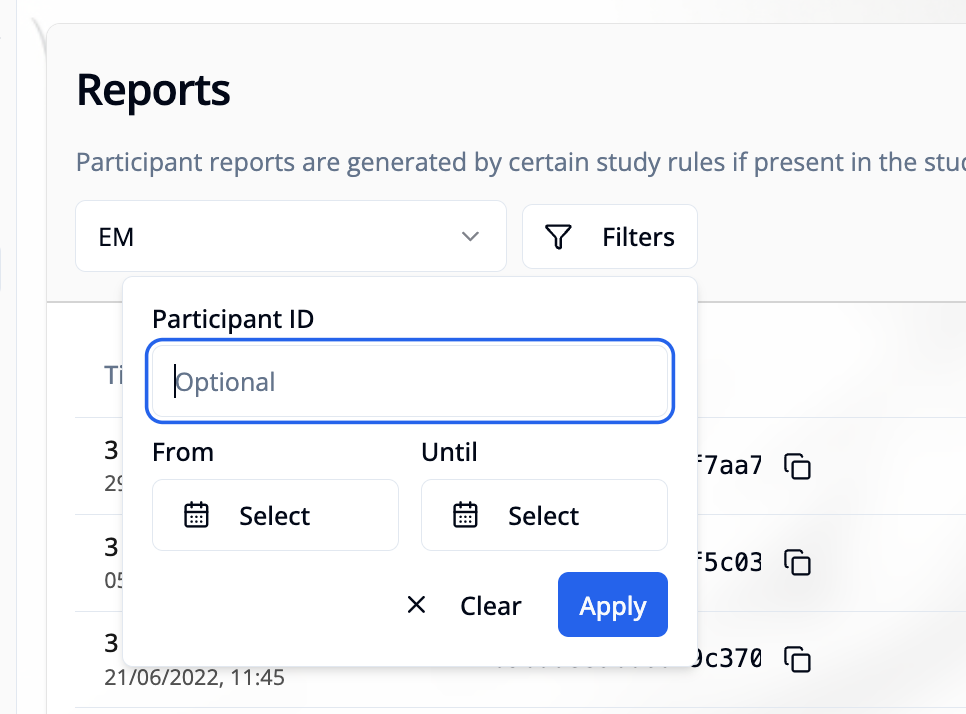
Additional filters: Use the additional filters to filter the reports by participant ID or timestamp - available through the button next to the report key selector. These additional filters are added to the report key selector filter, so only reports that match all filters will be shown.
Pagination / Load more
The table initially shows 100 reports (starting from the most recent). You can load more reports by clicking the "Load more" button at the bottom of the table (center).
Download current view as CSV or JSON
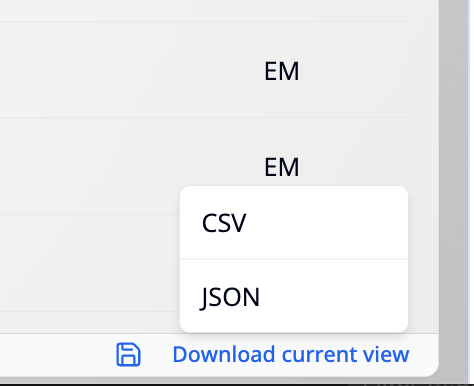
On the bottom right corner of the "Reports" card, use the "Download current view" which offers options to download the current table as CSV or JSON.
Bulk download (CSV or Raw)
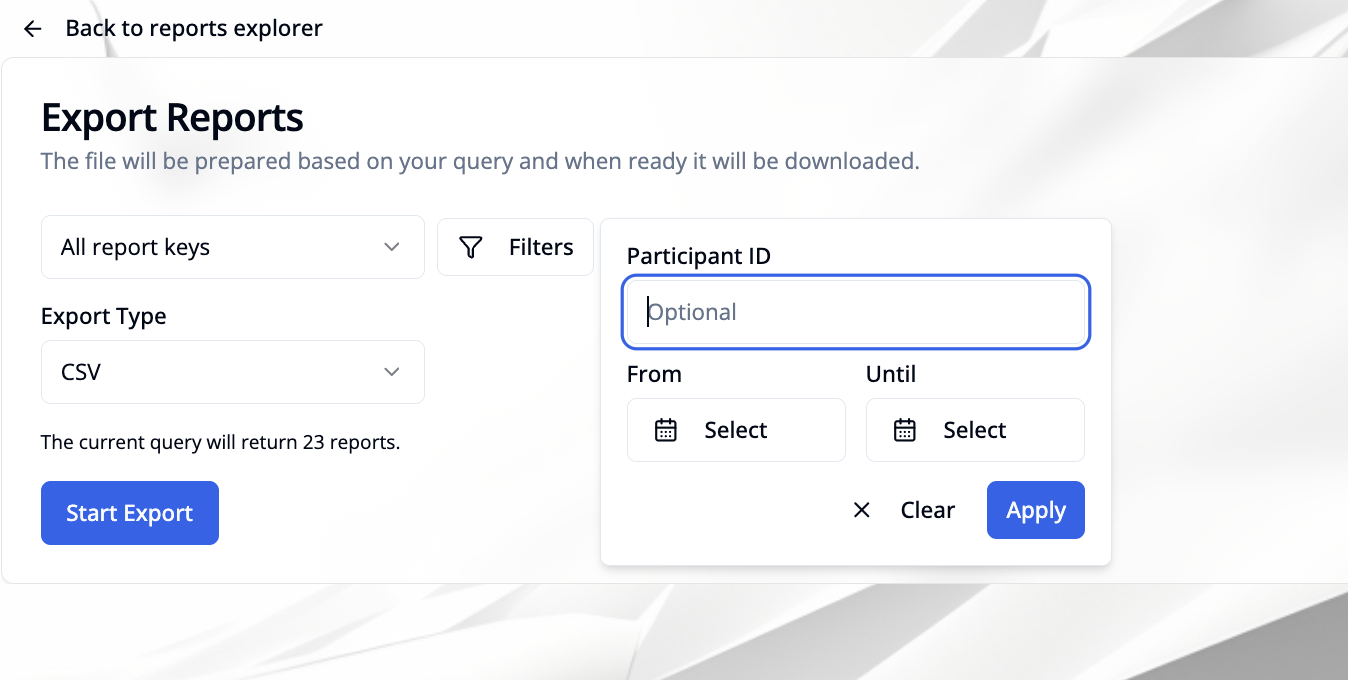
On the top right corner of the "Reports" card, use the "Open Exporter" button to open the exporter mode.
Use the exporter form to configure your download:
- Report key: Select one report key or keep All report keys.
- Export Type: Choose CSV or Raw.
- Filters (optional): Use the filter panel to narrow results by Participant ID and date range (From / Until).
The UI shows how many reports match the current selection. Click "Start Export" to start the export process.