 CASE Framework
Files
Manage and download participant-uploaded files
Overview
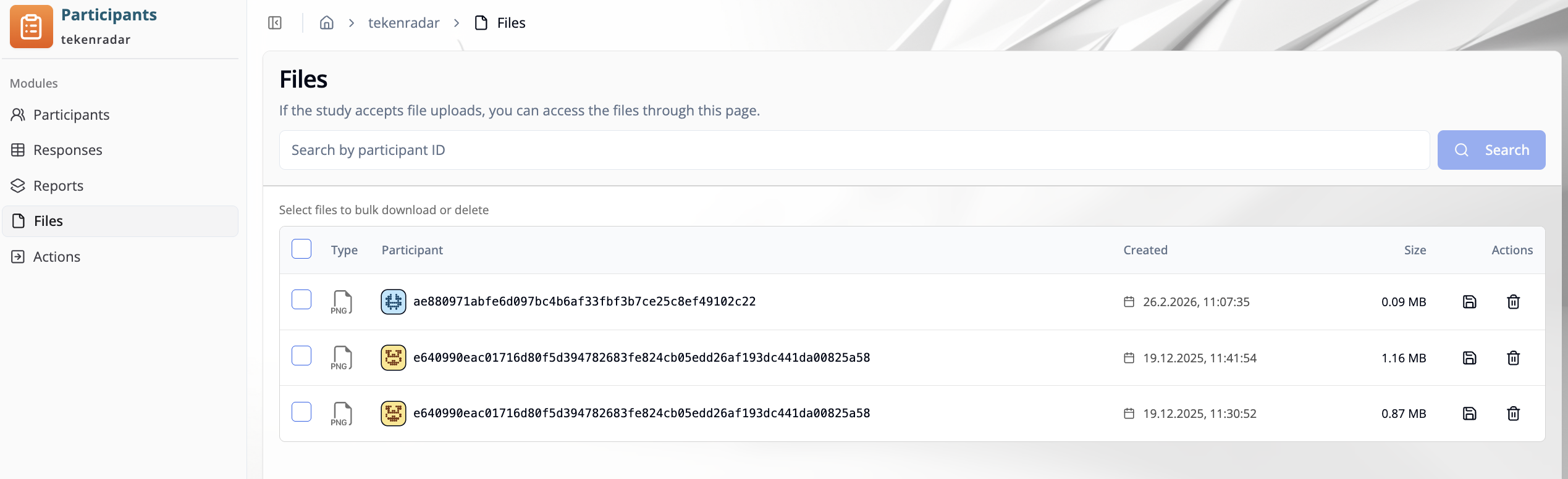
The "Files" tab in Participant Management shows uploaded participant files for the selected study. You can search files by participant ID, review file metadata, download individual files, and perform bulk actions.
Search
Use the search field at the top of the page to find files by participant ID.
Enter a participant ID in the search input.
Click "Search".
The table updates to show matching files.
Files Table
The table contains one row per uploaded file.
- Type: File type (for example, PNG)
- Participant: Participant ID the file belongs to
- Created: Upload date and time
- Size: File size
- Actions: Row actions for file handling
Actions
Download a file: Click the download icon in the row to save that file.
Delete a file: Click the delete icon in the row to remove that file.
Bulk Selection and Bulk Actions
Use the checkboxes in the first column to select multiple files.
- Select one or more rows for bulk operations.
- Use the available bulk actions to download or delete all selected files.
Review the selected rows before deleting files. Deletion is permanent and cannot be undone.