 CASE Framework
Actions
Perform bulk actions on participant data
Overview
The "Actions" tab in Participant Management allows you to run study actions on participants. Actions are executed based on a study action file and can be applied to a single participant or all participants in the study.
The available Action Types are listed in the left panel:
- General custom action
- On previous responses
- Schedule message
- Participant info updater
- Add reports
General Custom Action
A general custom action runs a study action expression against the current participant state. The action is defined in a file and uploaded here.
To create action files, use the Study Rules Editor.
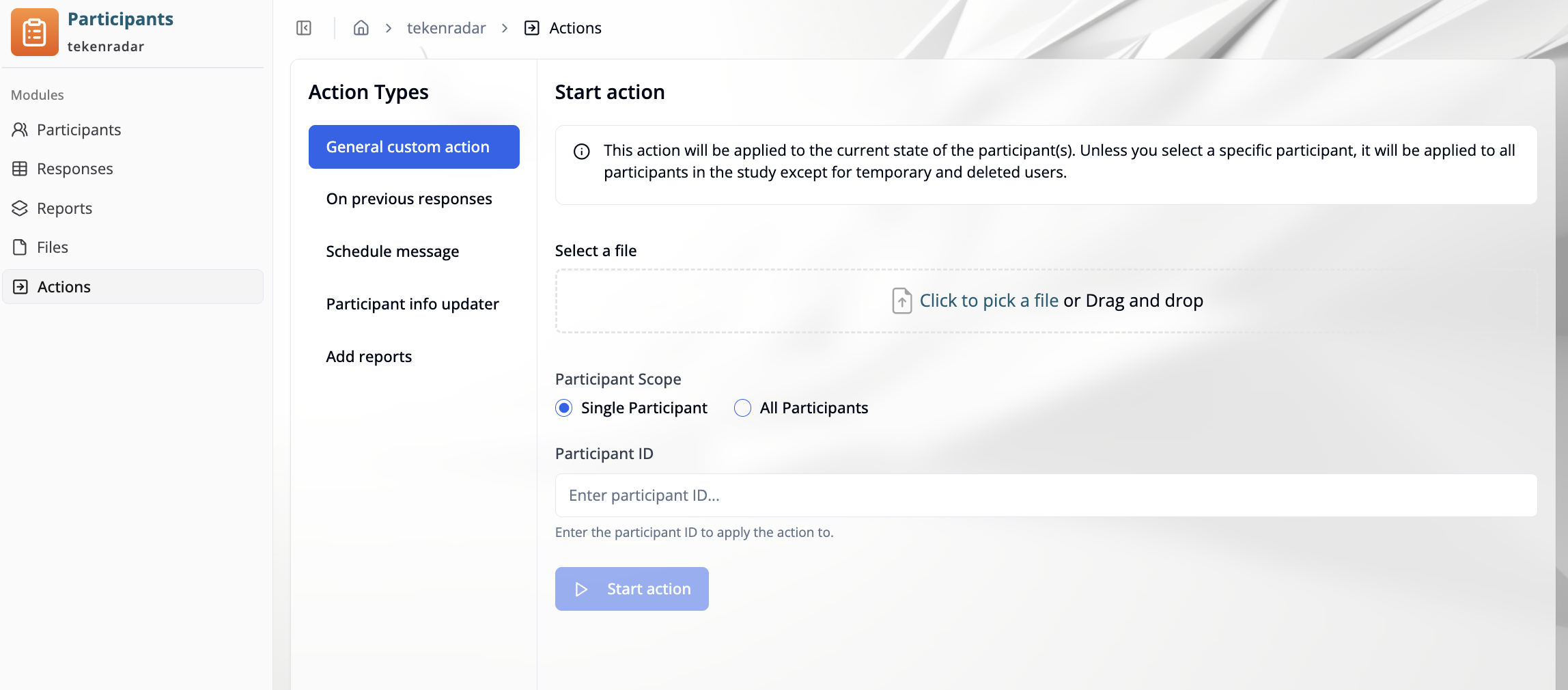
Configuration
Select a file Upload the action file by clicking "Click to pick a file" or by dragging and dropping it into the upload area.
Participant Scope Choose whether the action should be applied to one participant or all participants:
- Single Participant: Enter a specific participant ID in the "Participant ID" field below.
- All Participants: The action is applied to all active participants in the study. Temporary and deleted participants are excluded.
When using All Participants, the action is applied to every active participant in the study. Review the action file carefully before starting.
Click "Start action" to execute.
Execution
After starting, the "Study action execution" view opens and shows the progress of the task.
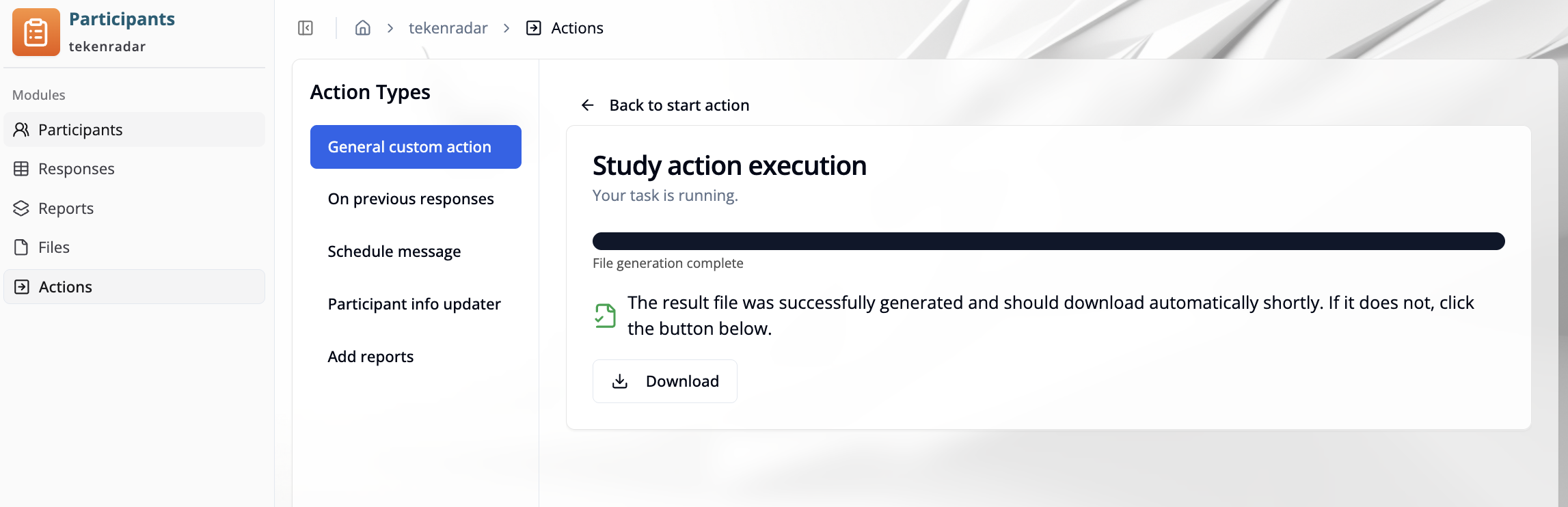
Once complete, the result file is generated and downloaded automatically. If the download does not start, click the "Download" button to retrieve it manually.
On Previous Responses
This action is applied as if the participant had just submitted their previous responses, allowing rules to implement custom submission handler events.
Unless a specific participant is selected, the action is applied to all participants in the study except temporary and deleted users.
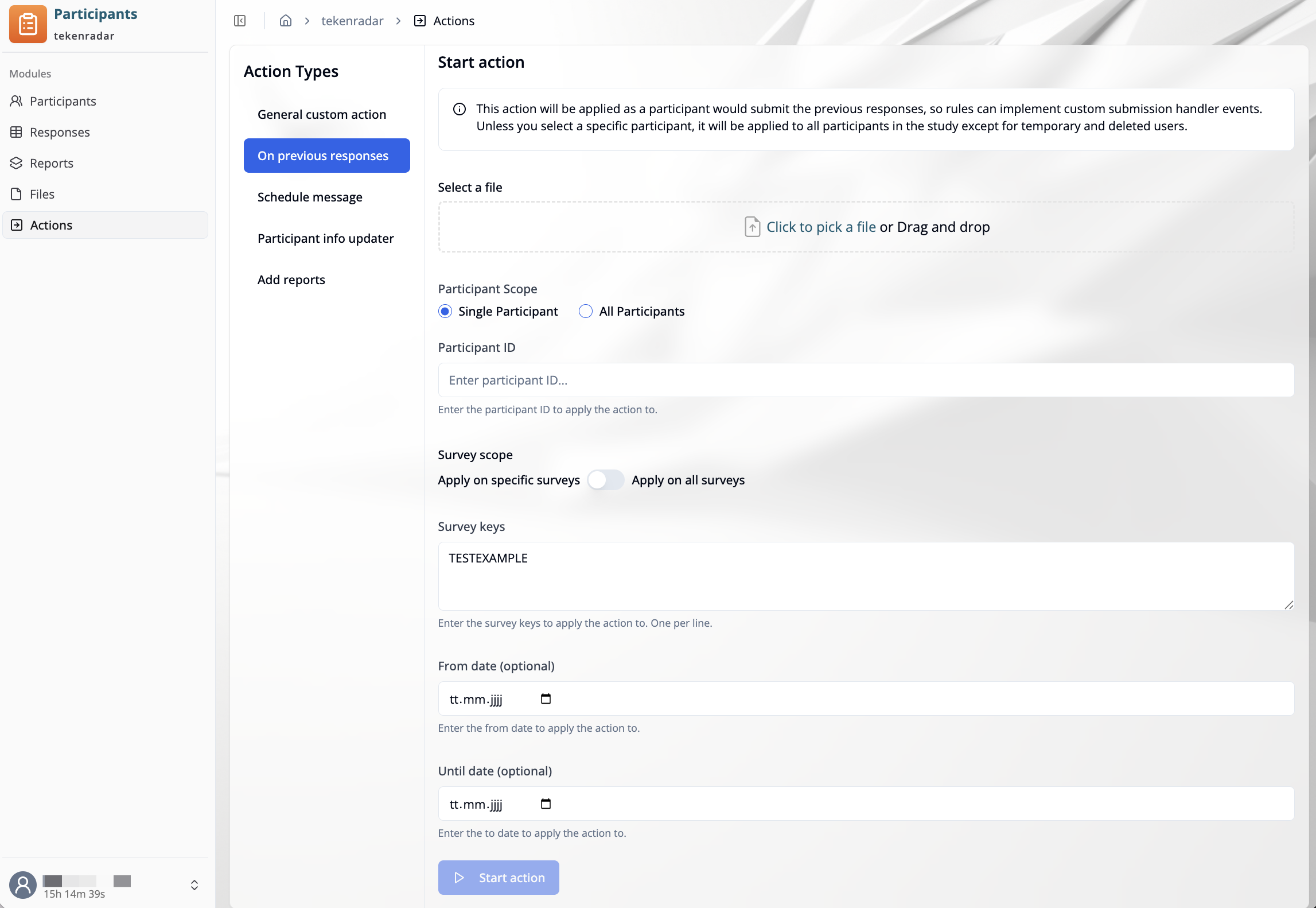
Configuration
Select a file Upload the action file by clicking "Click to pick a file" or by dragging and dropping it into the upload area.
Participant Scope
- Single Participant: Enter the participant ID in the "Participant ID" field.
- All Participants: The action is applied to all active participants in the study.
Survey scope Toggle between:
- Apply on specific surveys: Enter one survey key per line in the "Survey keys" field.
- Apply on all surveys: The action is applied across all surveys.
From date / Until date (optional) Restrict the action to responses submitted within a specific date range.
Click "Start action" to execute.
Schedule Message
Use this action type to schedule a message to be sent to participants. A CSV file is used to provide participant IDs and optional additional information.
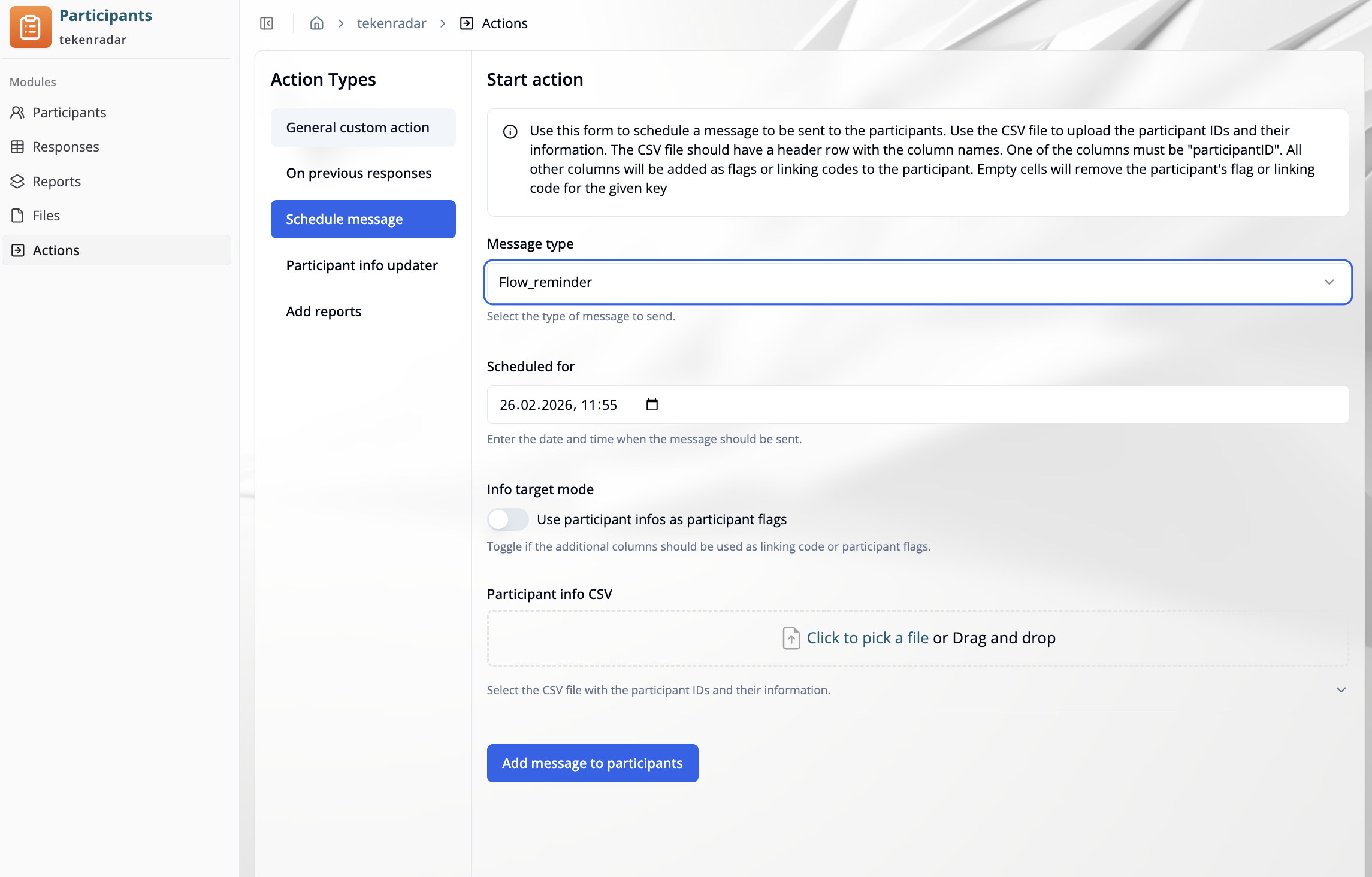
The CSV file must have a header row. One column must be named participantID. All other columns will be added as flags or linking codes to the participant. Empty cells will remove the existing flag or linking code for that key.
Configuration
Message type
Select the type of message to send from the dropdown (e.g., Flow_reminder).
Scheduled for Enter the date and time when the message should be sent.
Info target mode Toggle "Use participant infos as participant flags" to control whether additional CSV columns are treated as participant flags or linking codes.
Participant info CSV Upload the CSV file containing participant IDs and their information by clicking "Click to pick a file" or by dragging and dropping it.
Example CSV structure:
| participantID | group | reminder_sent |
|---|---|---|
| abc123 | A | true |
| def456 | B |
In this example, group and reminder_sent are added as flags or linking codes. An empty cell removes the existing value for that key.
Click "Add message to participants" to schedule the message.
Participant Info Updater
Use this action type to update participant flags or linking codes in bulk using a CSV file.
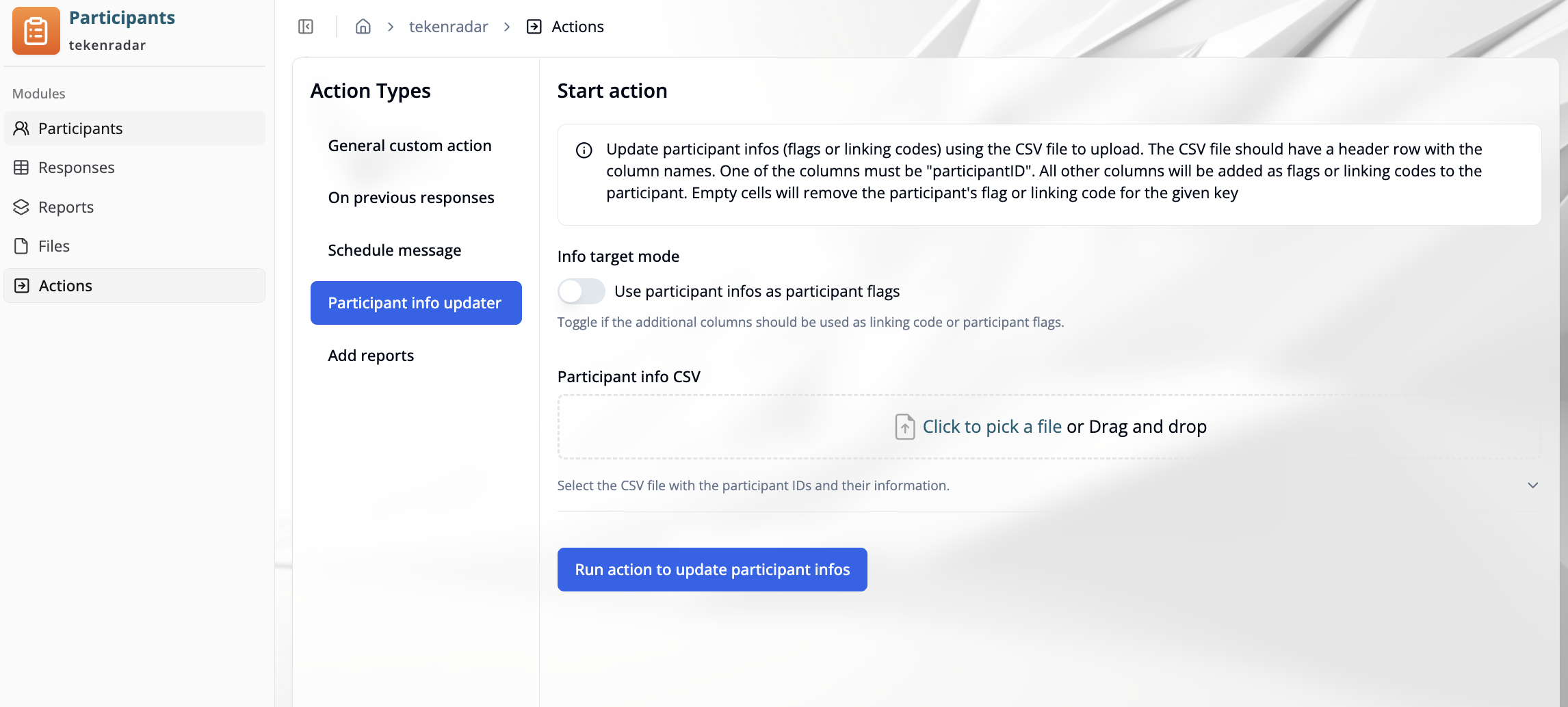
The CSV file must have a header row. One column must be named participantID. All other columns will be added as flags or linking codes to the participant. Empty cells will remove the existing flag or linking code for that key.
Configuration
Info target mode Toggle "Use participant infos as participant flags" to control whether additional CSV columns are treated as participant flags or as linking codes.
Participant info CSV Upload the CSV file containing participant IDs and their information by clicking "Click to pick a file" or by dragging and dropping it.
Example CSV structure:
| participantID | testkit_sent | group |
|---|---|---|
| abc123 | true | A |
| def456 | B | |
| ghi789 | true |
In this example, testkit_sent and group are added as flags or linking codes. An empty cell (e.g., def456 has no value for testkit_sent) removes the existing value for that key.
Click "Run action to update participant infos" to execute.
Add Reports
Use this action type to generate new reports with payload data from a CSV file for participants. Optionally, a notification email can be scheduled for sending as soon as possible.
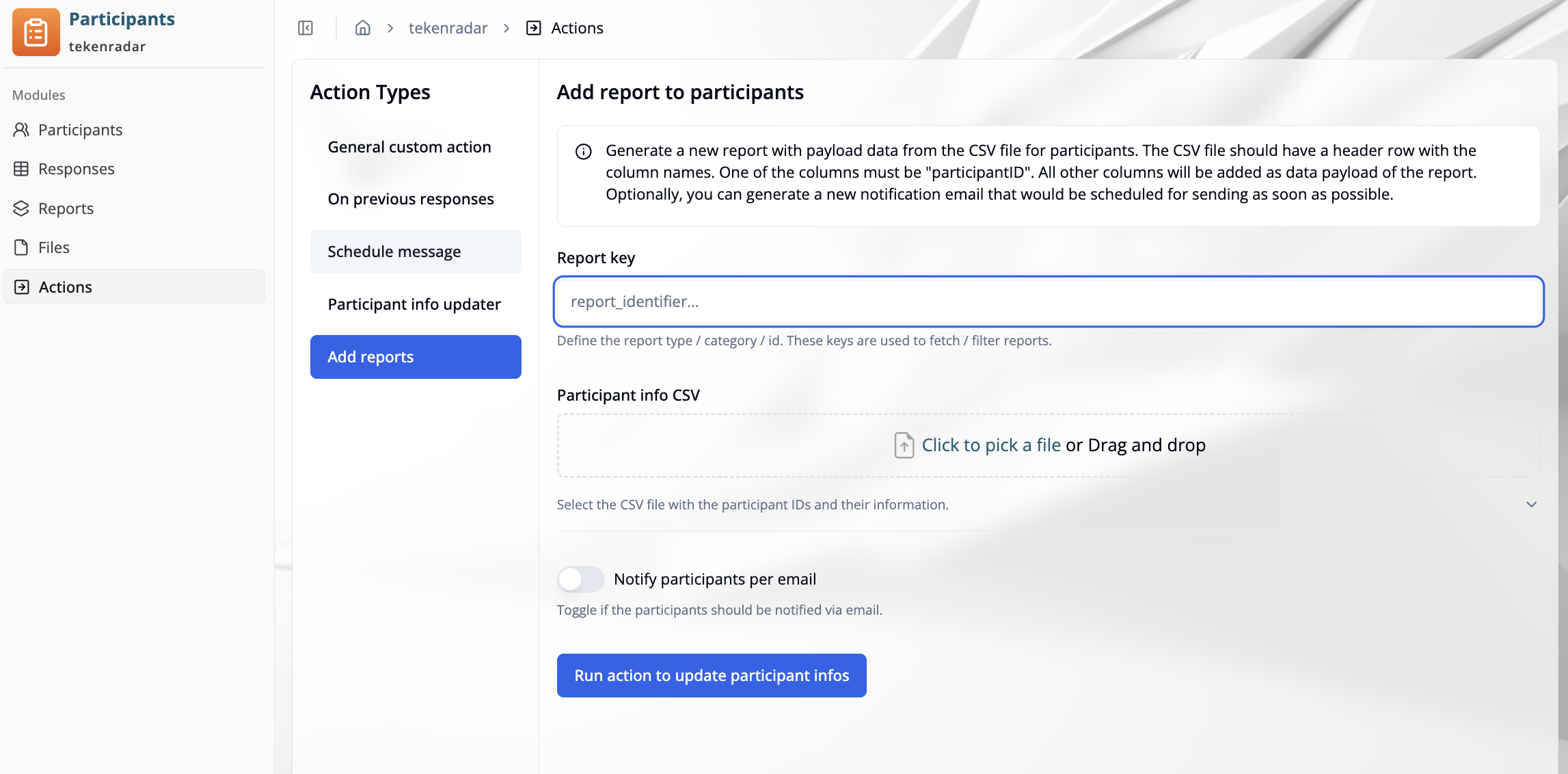
The CSV file must have a header row. One column must be named participantID. All other columns will be added as data payload of the report.
Configuration
Report key
Enter a key to identify the type or category of the report (e.g., report_identifier). These keys are used to fetch and filter reports.
Participant info CSV Upload the CSV file containing participant IDs and their payload data by clicking "Click to pick a file" or by dragging and dropping it.
Example CSV structure:
| participantID | studyID | score |
|---|---|---|
| abc123 | 028 | 42 |
| def456 | 028 | 17 |
In this example, studyID and score are included as data payload fields in the generated report.
Notify participants per email Toggle this option if participants should be notified via email after the report is added.
Click "Run action to update participant infos" to execute.